If you want to make new quantities for the bundle products and have them on stock so that you can sell them, follow this instruction.
For this purpose we will use as an example Pink Premium Box Pandora bundle (pink box + black box).
We order these 2 products separately, and we receive them on stock separately, but we sell it as one product - Pink Premium Box Pandora. This final product should have correct quantities, selling and purchasing price.

1. Before you start, you have to have all the products in the system with product details. In this case, we have A009 for the Box alone, P11084 for the Bow alone, and PB_PINK1 for the bundle product Pink Premium Box Pandora.
*If you need instructions on how to create a new product in the system, click HERE for massive import and HERE for single import.
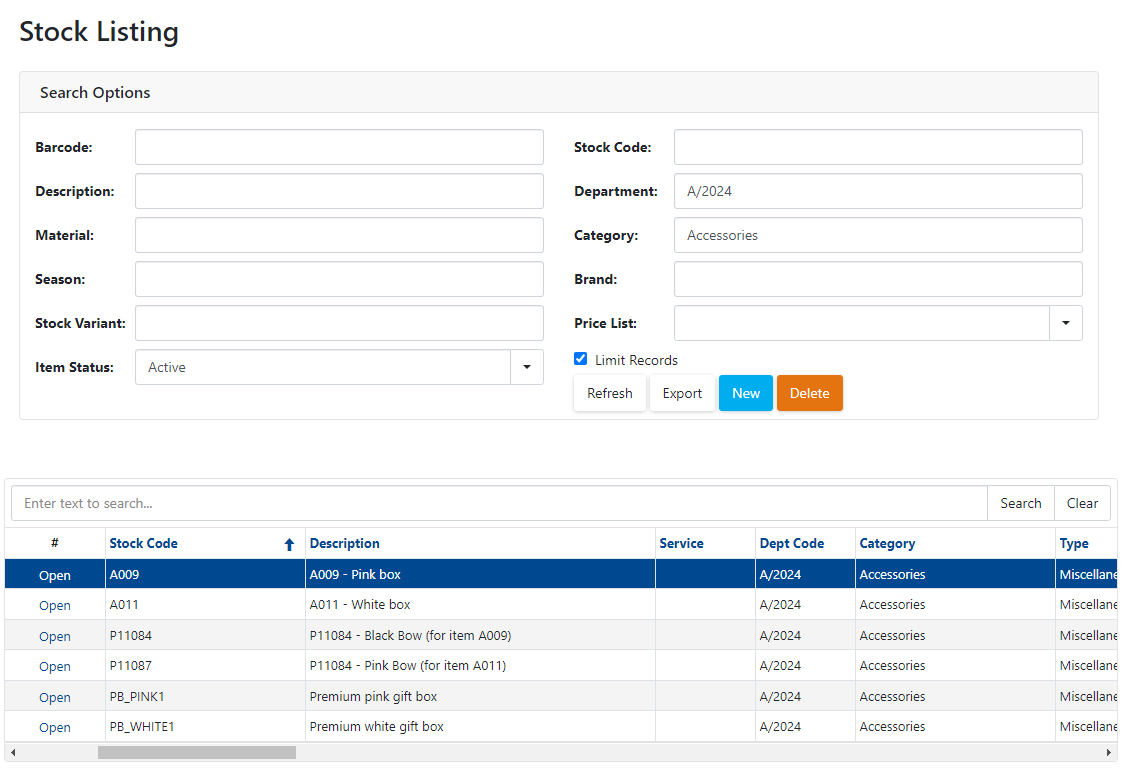
2. You need to have on stock Pink box and Black bow, with correct purchase prices from Pandora.
To put the items on stock, click HERE.
3. Go to Stock Adjustments - Adjustment Batches
4. Click on "New Adjustment"
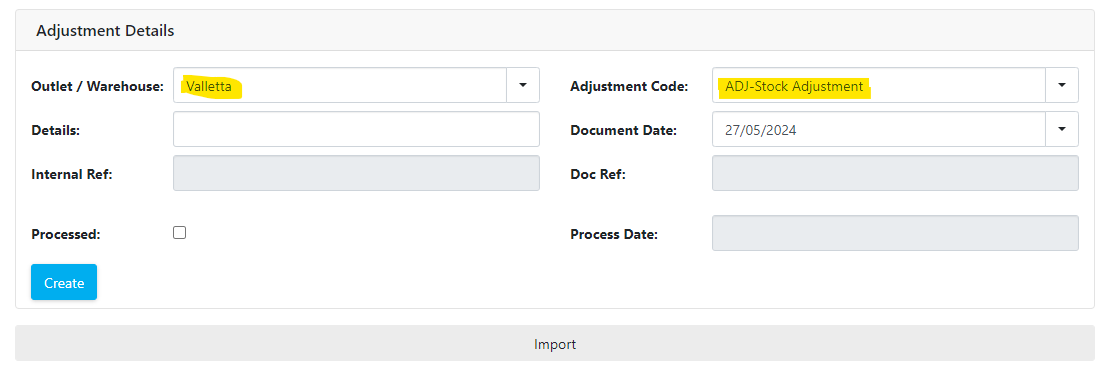
5. Fill in the Outlet/Warehouse where your single product stock is, and "Adjustment Code" - ADJ-Stock Adjustment, then click "Create"
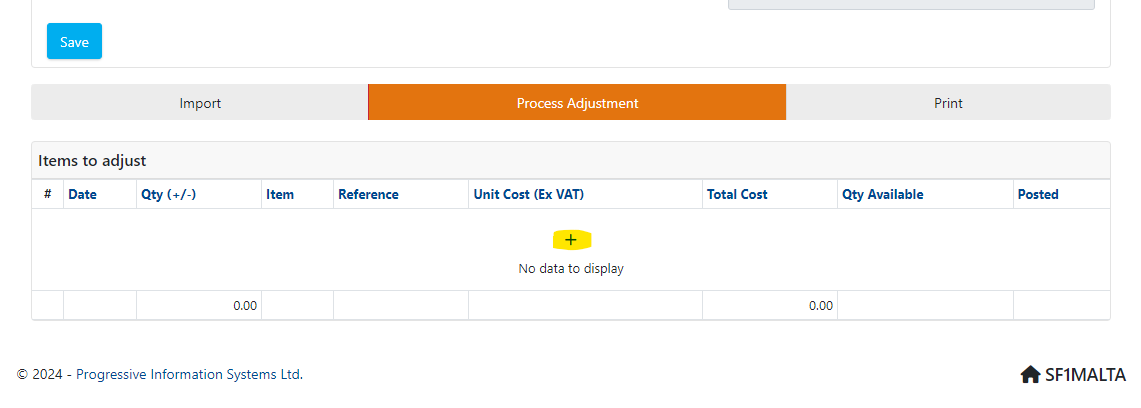
6. Click on "+" to add a product for which you are adjusting quantities. We want to remove Pink box and Black bow from the stock, and add Pink Premium box Pandora bundle product, in the same quantities.
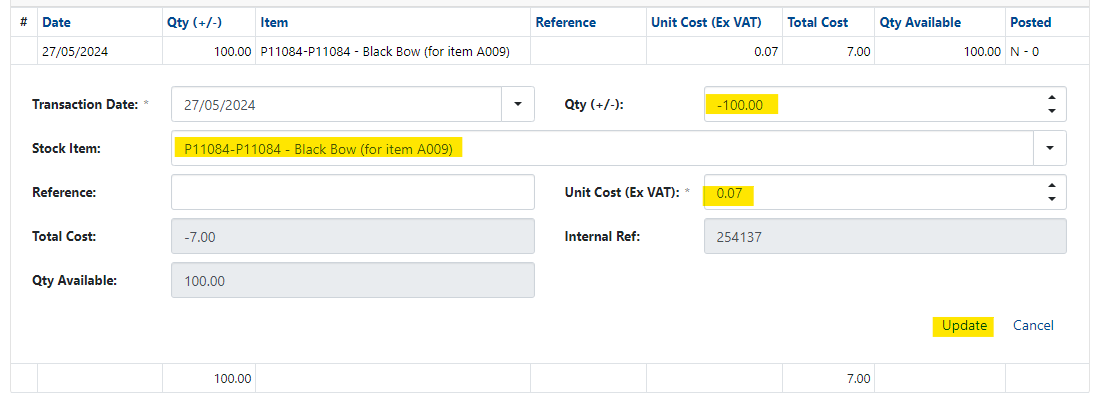
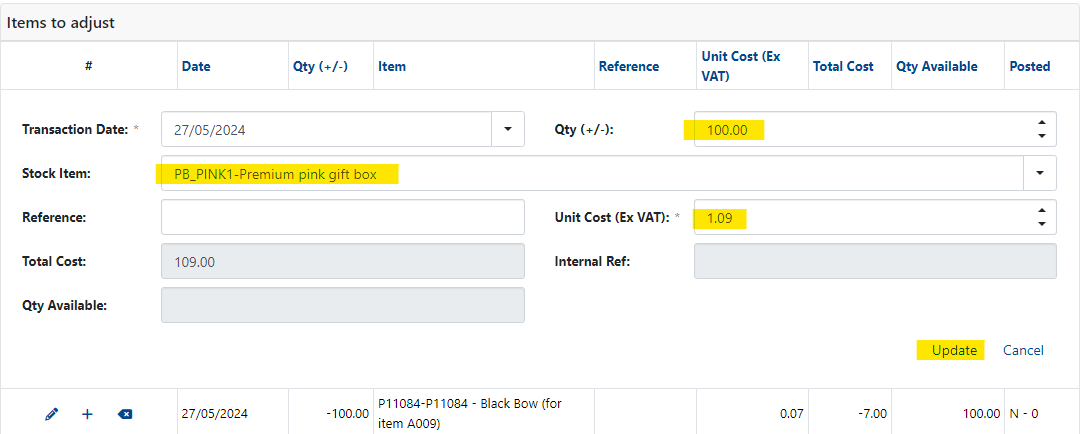
7. Fill in the "Stock item", "Qty" and "Unit Cost" for P11084 Black Box and A009 Pink Box. Quantities should be negative, since you are removing these items from stock to add stock for a new item. Click Update.
8. To add a new product, click "+" again. Do the same for the Pink box A009
9. Click "+" again and add a PB_PINK1 - Pink Premium Box Pandora. Your quantities for this product should be in +, since you are adding it to your stock. Unit cost should be the sum of the values (unit price for A009+unit price for P11084).
10. If you did everything right, you should have a total cost of Adjustment batch of zero 0
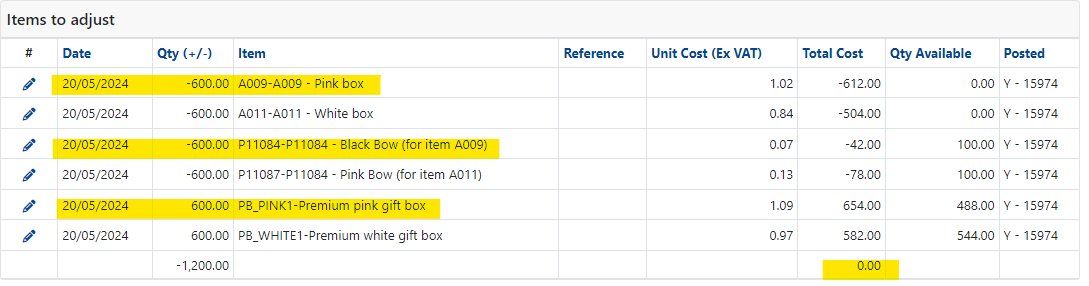
11. If everything is correct, click on orange button "Process Adjustment". Keep in mind that after this step you can no longer change anything in this adjustment, it will be locked and it can not be deleted.
Was this article helpful?
That’s Great!
Thank you for your feedback
Sorry! We couldn't be helpful
Thank you for your feedback
Feedback sent
We appreciate your effort and will try to fix the article