1. Go to Purchase Orders
2. Go to New GVR
3. Select the store you wish to replenish, and put in the Supplier (Always Pandora Italia) and Payment Terms
4. Click on "Save as Draft"
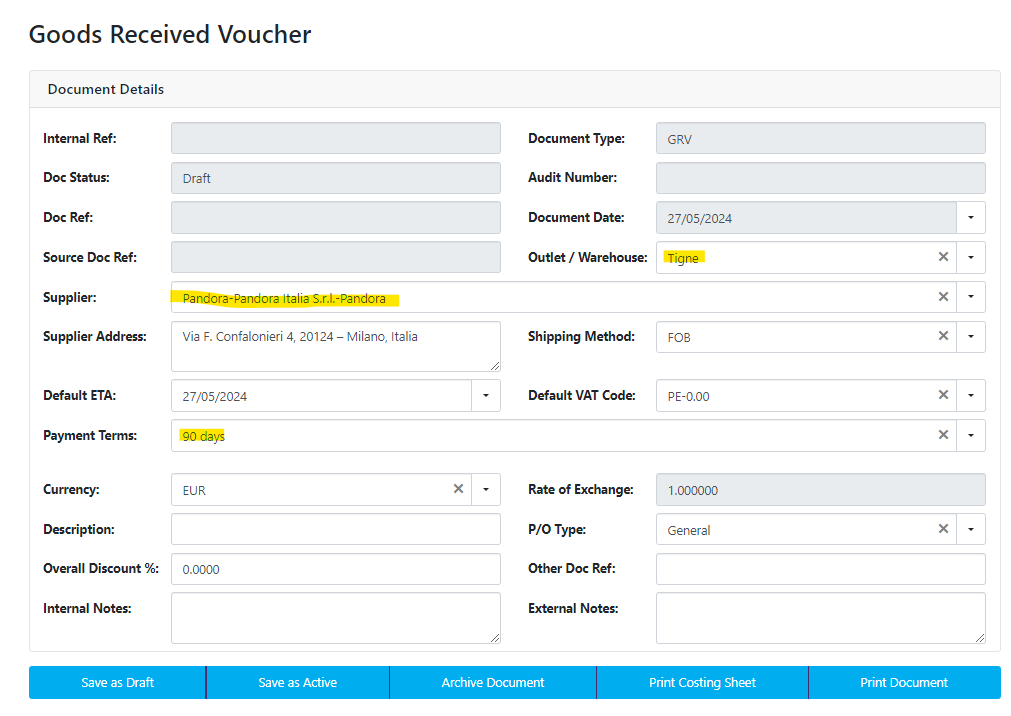
5. Below in the "Items" tab, click on "Other Actions"
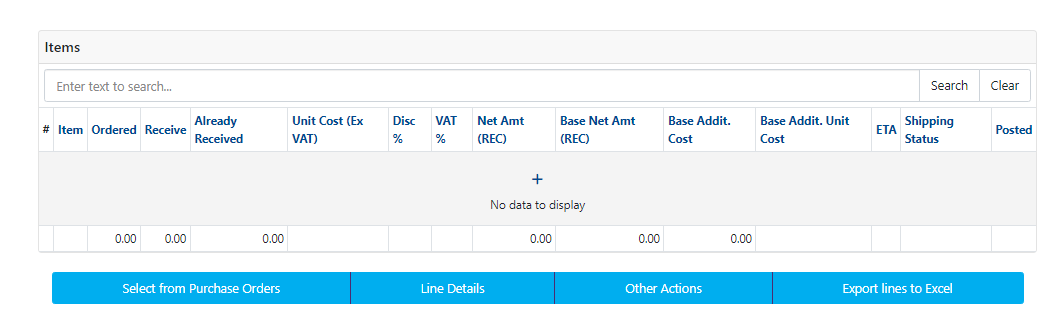
6. In the pop-up window "Actions" select "Import items"
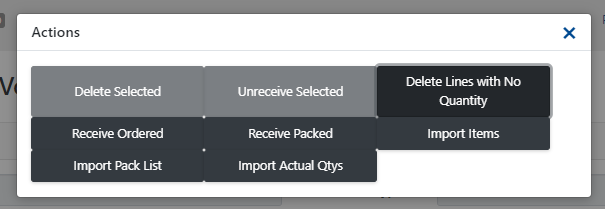
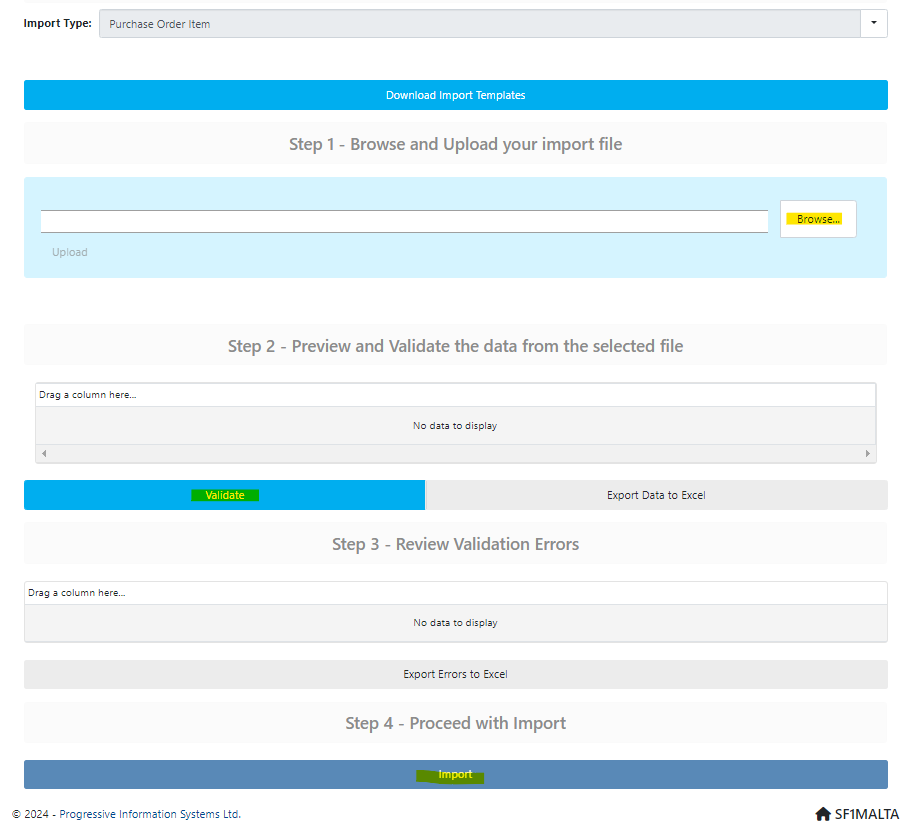
7. In the "Import Data" window you can click on "Browse" and select the .csv file that you wish to import. Select it and see if it is uploaded.
You can find a CSV template file attached to this article.
8. You can click on "Validate" to check if you have imported everything right, and if the columns of the sheet are imported correctly. If you want to put on stock products that you don't have in the system, you will have to create them in the system first. Use instructions HERE
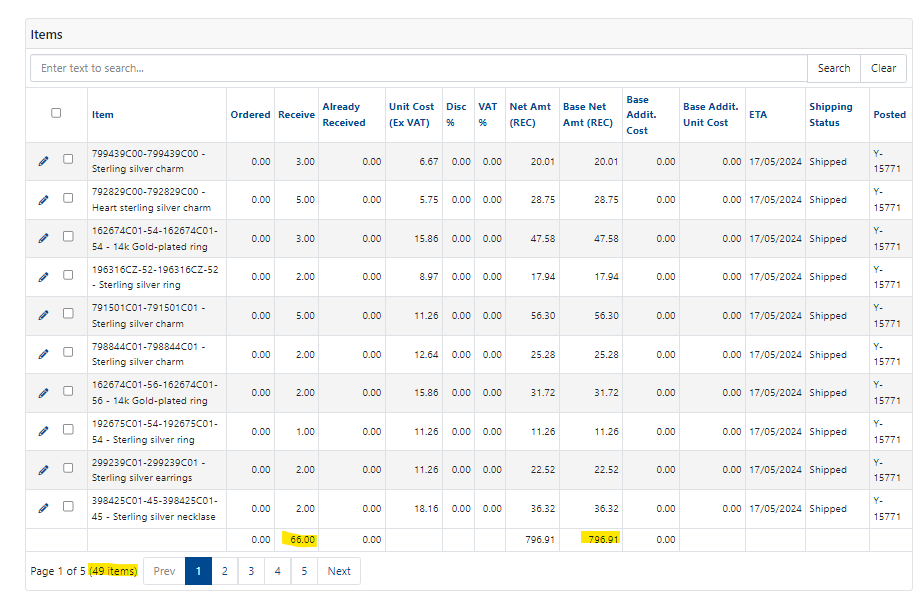
9. If everything is ok - click "Import". This should import all the items, quantities and prices for you and you will be able to see them in lines in the "Items" tab.
10. Check if the total lines are ok (in this example 49 different products, 66 pieces in total, and the total price is 796,91). Check if it matches your invoice again.
11. Below the "Items" tab you will see GRV Documents (Invoices / Credits) - Click on "New"
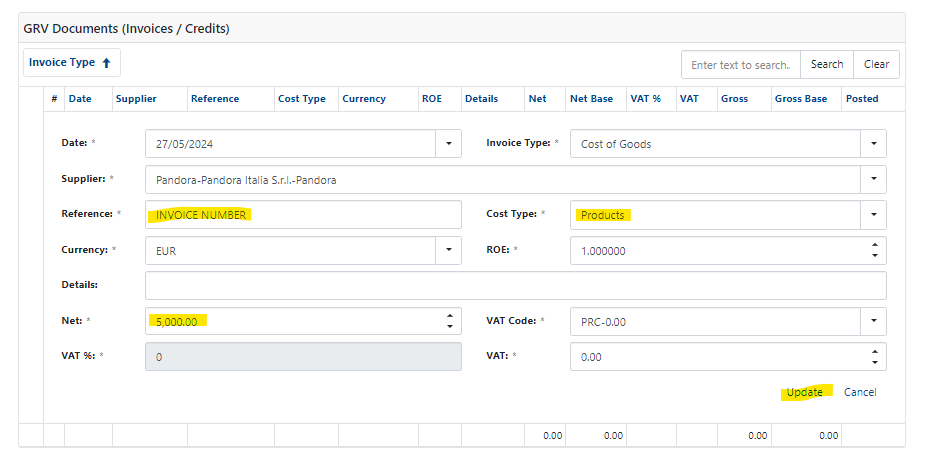
12. You fill in the "Reference" with invoice number from Pandora, "Cost Type" should be "Products", "Net" should be the value of the whole invoice (without VAT) and it must match the total value you have inserted in the "Items" tab, the total value of all the goods.
If everything is ok, click "Update"
13. When everything is ready and you are sure that everything is ok, click on "Save as Active" (in the first "Document details" tab, and then "Archive Document"

14. Please keep in mind that after this step you can no longer edit or change anything and this puts goods on stock instantly and the information about import of the products goes straight to VAT office in Malta. So you should do these steps with caution.
Was this article helpful?
That’s Great!
Thank you for your feedback
Sorry! We couldn't be helpful
Thank you for your feedback
Feedback sent
We appreciate your effort and will try to fix the article