If you want to do transfer in XtraPOS in Malta please follow these steps:
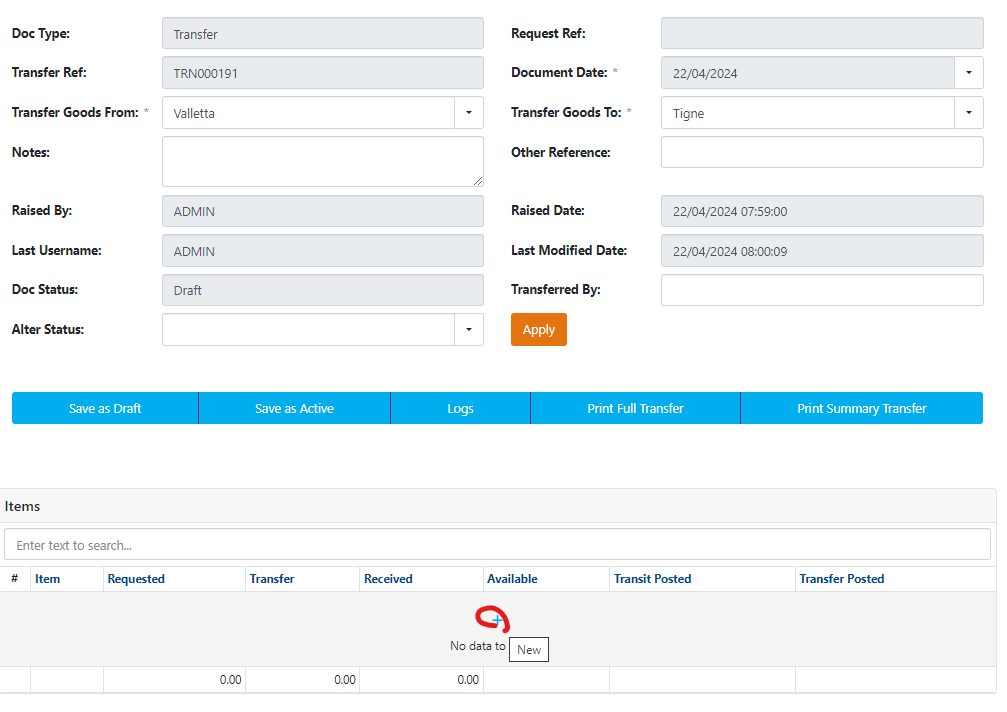
- You go to Transfers and then New transfer
- Fill in the fields Transfer Goods from and Transfer Goods to
- Click Save as Draft
- In the section items go to +
5. Enter the code of the product and press Enter, if needed to change the quantity fill in higher number than 1 in the field Transfer and go to Update.
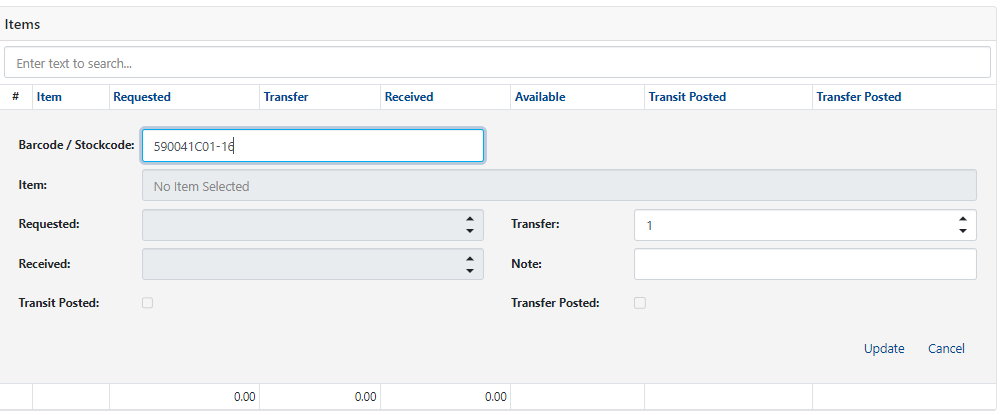
6. If you want to do more than one product, go to "+" and repeat step 5 for every product needed.
7. When you have all the wanted products, you can Click on Save as Active (Document will now be in the status Transfer Pending preparation)
8. Go to Alter status and from the drop-down menu click on Transfer Ready for Pickup and then Apply.
9. Go to Alter status and from the drop-down menu click on Transfer in Transit and then Apply.
10. You will see that the product is now orange, so you need to receive items, you can do it manually, or receive all the items by clicking on the button below Receive All items.
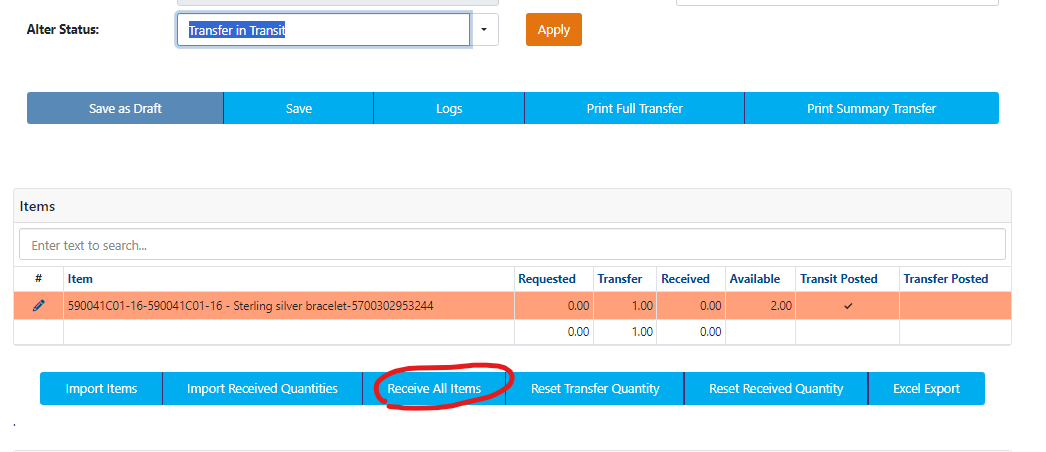
11. After receiving, product is again white, and you can Alter Status to Transfer Received and then Apply.
12. Again, go to Alter status and from the drop-down menu click on Transfer Finalized and then Apply.
Your transfer is now done.
Was this article helpful?
That’s Great!
Thank you for your feedback
Sorry! We couldn't be helpful
Thank you for your feedback
Feedback sent
We appreciate your effort and will try to fix the article