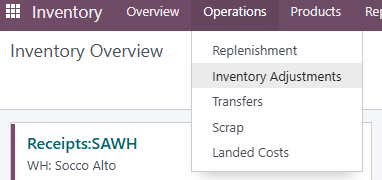
Inventory in this version of Odoo is done in 2 steps:
1. Changing the currently available records (changing the qty of the products you have on stock currently)
2. Adding the products you dont have currently on stock
Changing the currently available records
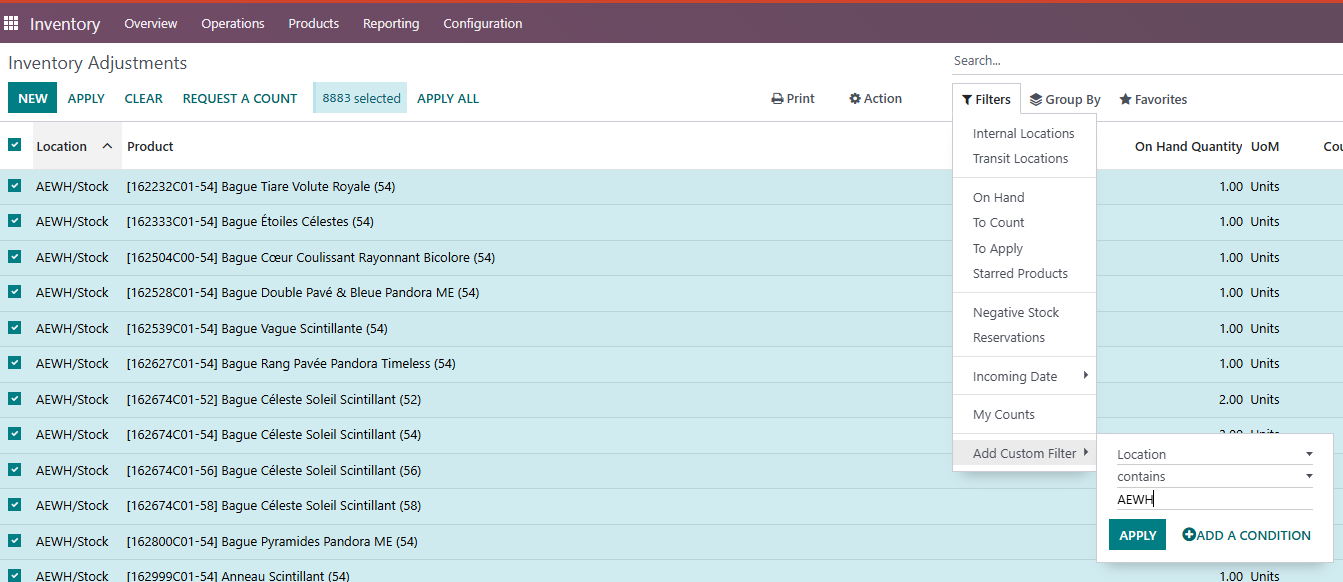
1. Export all the available products in the form that is already predefined in Odoo, you should also filter it by store:
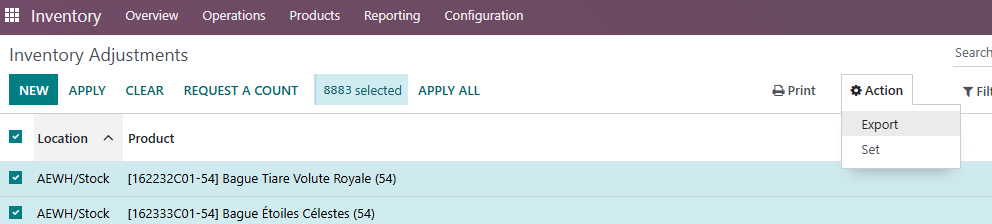
And then Export
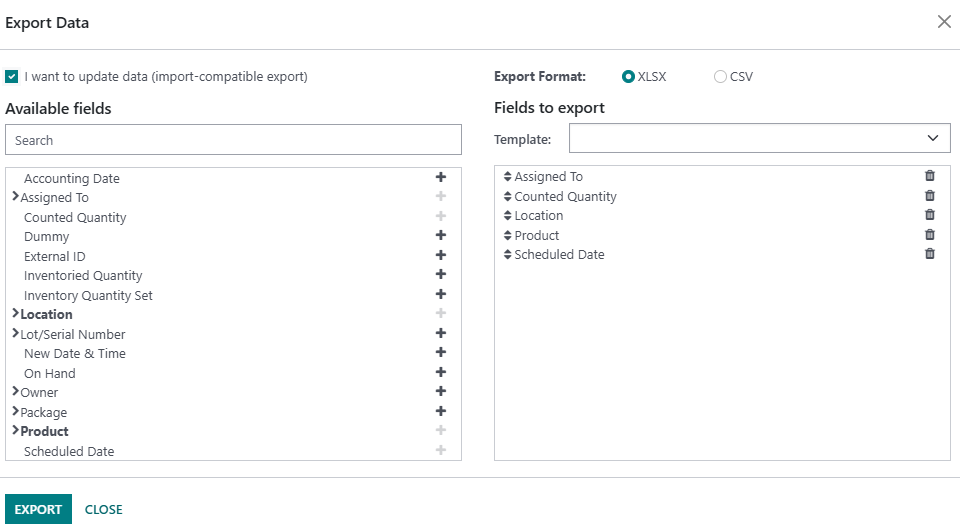
For updating data (changing the qty of currently available products) you have to check the checkbox "I want to update data" on the right top corner of popup. This is how you will get internal Odoo codes for importing.
This document should be imported back into Odoo, with changed quantities based on your inventory.
Inventory will be applied with current moment, that means that any changes you make must be correct inventory in current time.
If you have any sales or putting goods on stock after inventory, it must me calculated in this excel before importing in the system.
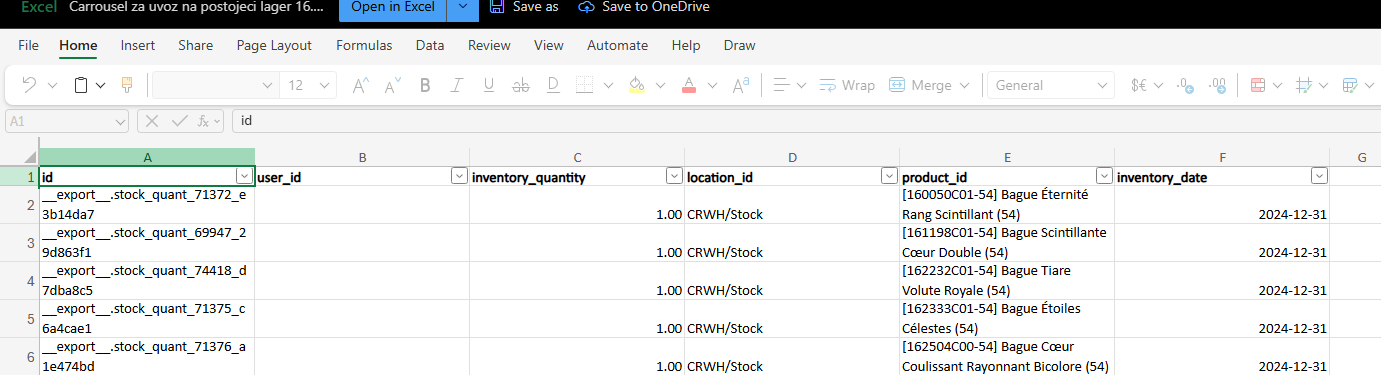
Count and fill the excel attached, use VLOOKUP to connect the product codes and quantities with internal Odoo IDs.
Correct table should look like this (example attached in manual (Carousell example)):
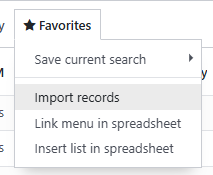
Import that excel with changed qty in Odoo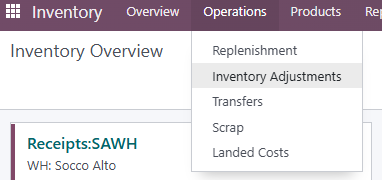
2.
When you want to add the file, test it first, you need to import only the fields id (External ID) and inventory_quantity (Counted Quantity) as shown on the picture below. Click "x" on all the other Odoo fields that are in the import file, as shown below.
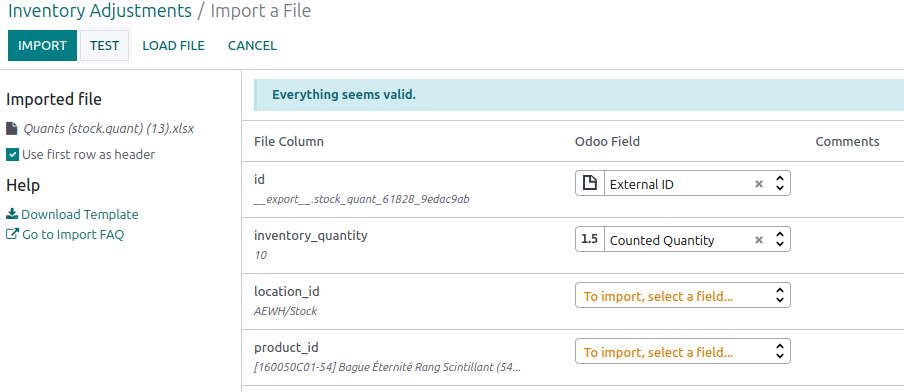
If the test is successful, go to Import.
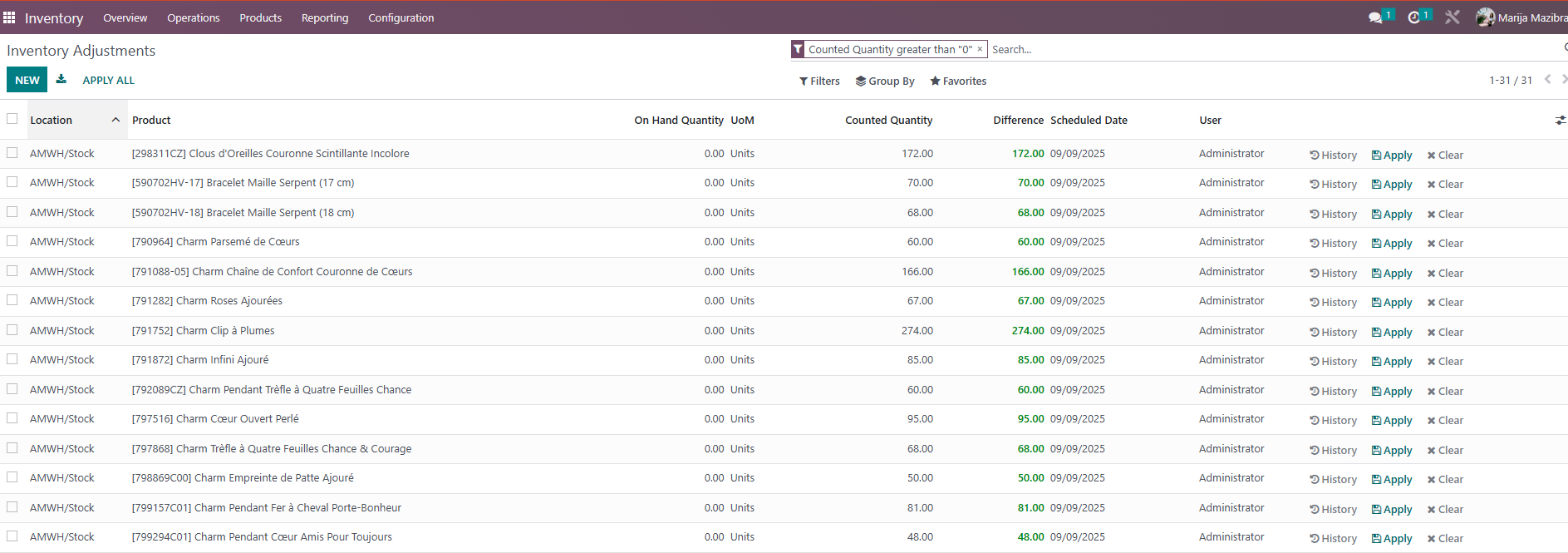
Once the import is done, in the main window for inventory adjustment, you should select all the products and you will get a button "APPLY ALL".
Check if everything looks correct before applying. Make sure you have selected all the products by clicking "Select all".
When you are sure that you have selected all the products and that everything seems correct go to Apply All.
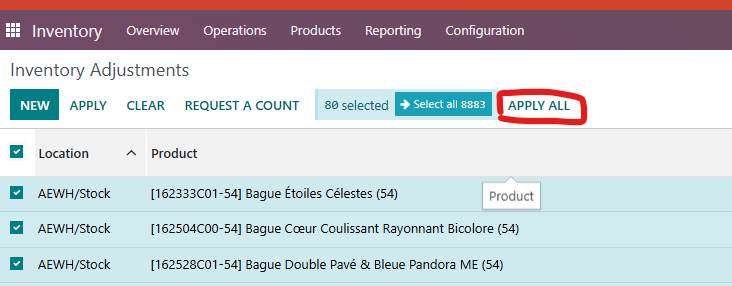
In the popup window, type in the Inventory Adjustment reference and go to Apply.
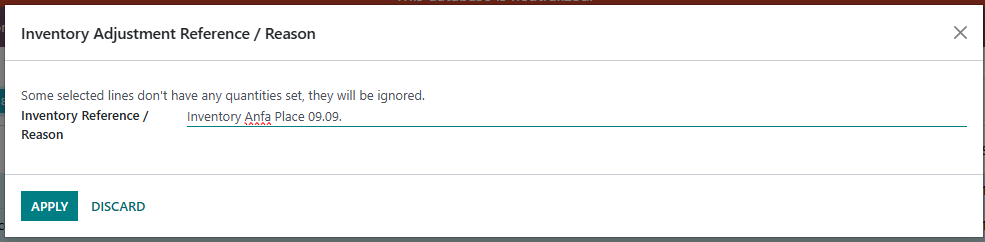
By doing this, you have changed the existing records, for the products that you already had on stock
Adding the products you don't have currently on stock
The other part of the process is importing the new rows (in separate Excel sheet, but the format is the same as attached (Anfaplace Exapmple).
This is just for the products that you currently don't have on stock, but you have found them physically and want to import them through inventory valuation.
Excel should look like this:
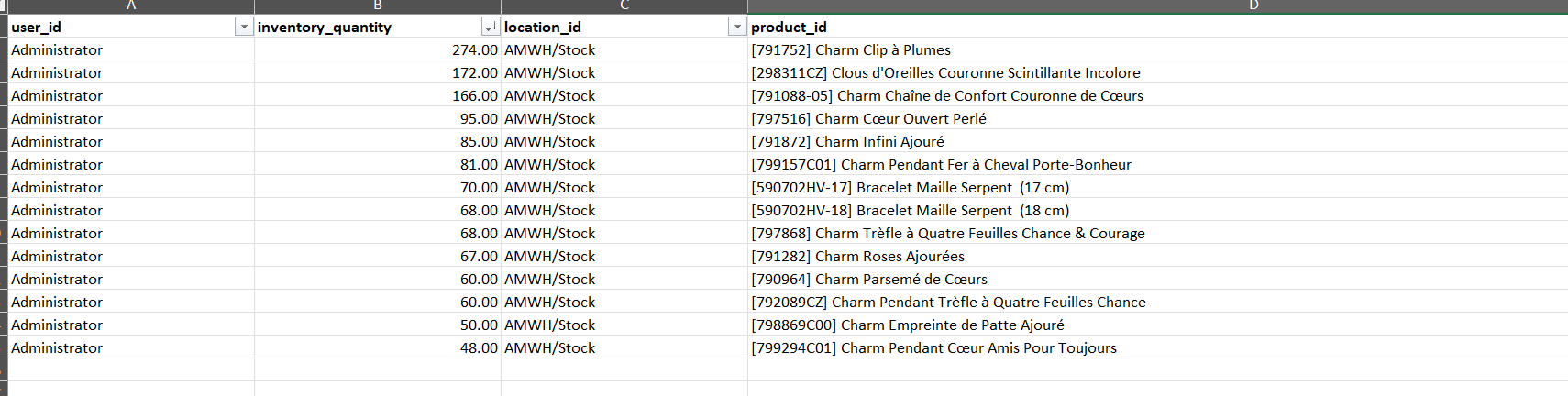
The process of importin the excel is the same:
Inventory - Inventory Adjustments - Favorites - Import Records.
All the fields should be checked like this:
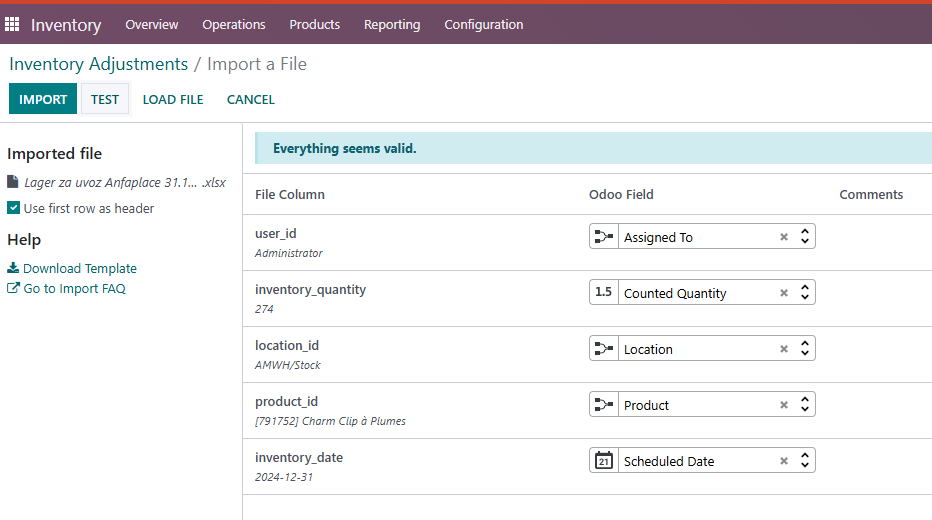
This will add new lines and you can apply changes by selecting all products and then go to APPLY ALL (the same way as you updated the first part). Check if everything is ok before importing.
Was this article helpful?
That’s Great!
Thank you for your feedback
Sorry! We couldn't be helpful
Thank you for your feedback
Feedback sent
We appreciate your effort and will try to fix the article