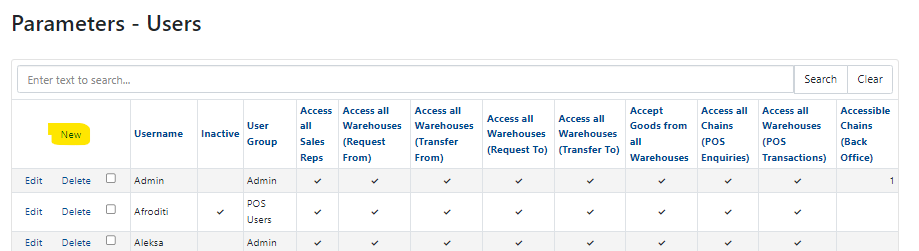
1. Go to Users in the menu.
2. Click on New
3. The easiest way is to see the rights and the fields for another user, so you can open another user on "Edit" in the new tab and copy the fields you need. For example, for the store POS this is the setup - this is the data for an POS User in the Shoreline store. Email field is not mandatory. If you are happy with your User data, click on "Update" in the down right corner. If you need a new "Sales Rep" please follow instructions here
Sales Rep will have impact on your reports, so fill it in with correct data.
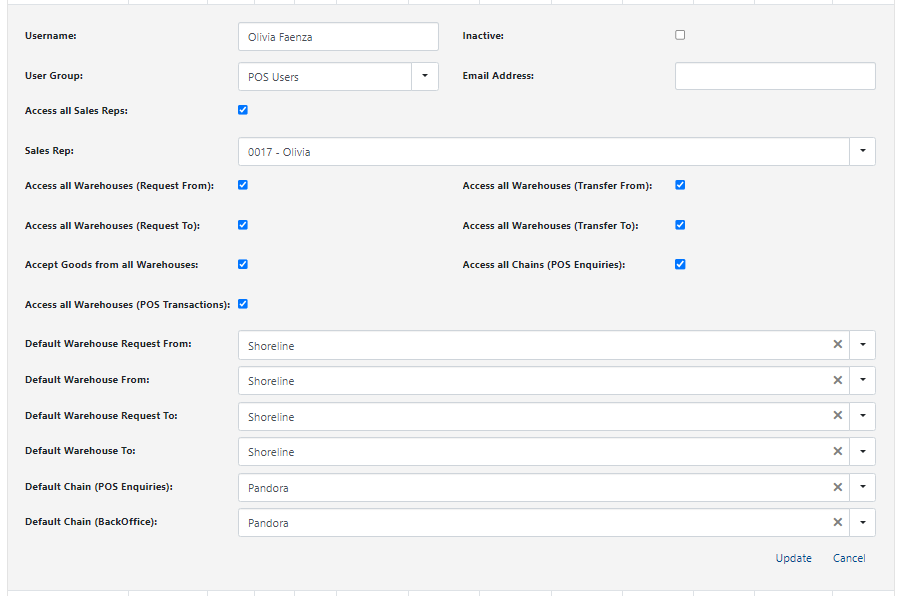
4. The Access you give to your new user will determine his/her permitions in the system. If you do not do it correctly, the User will not be able to do his/her job. If you are sure that you have set up the User correctly in the system you can proceed.
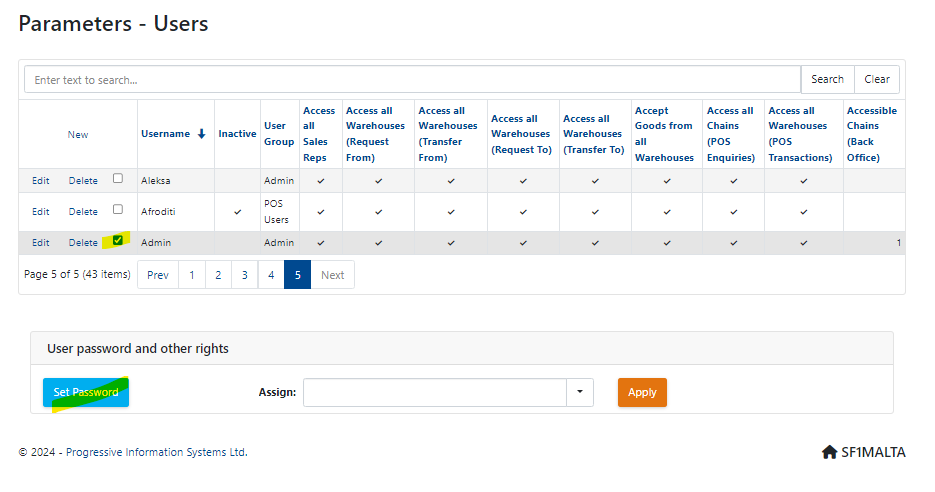
5. Your new User now exists in the system, but he does not have a password, so click on a checkbox next to User Name and then click on "Set Password"
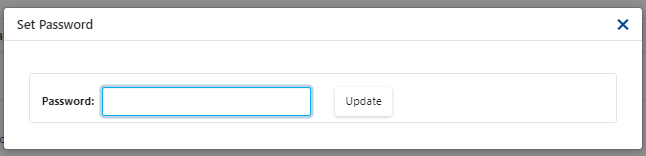
6. Write in the Password and click "Update"
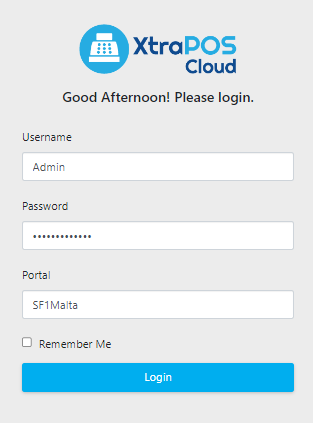
7. When login-in, User needs "Username", "Password" and "Portal". Portal is Always SF1Malta.
Give your new User his/her credentials and, have him login and check if everything is working ok.
Was this article helpful?
That’s Great!
Thank you for your feedback
Sorry! We couldn't be helpful
Thank you for your feedback
Feedback sent
We appreciate your effort and will try to fix the article