If you have a new store and you should create it in the system, please follow these instructions:
Creating New Store
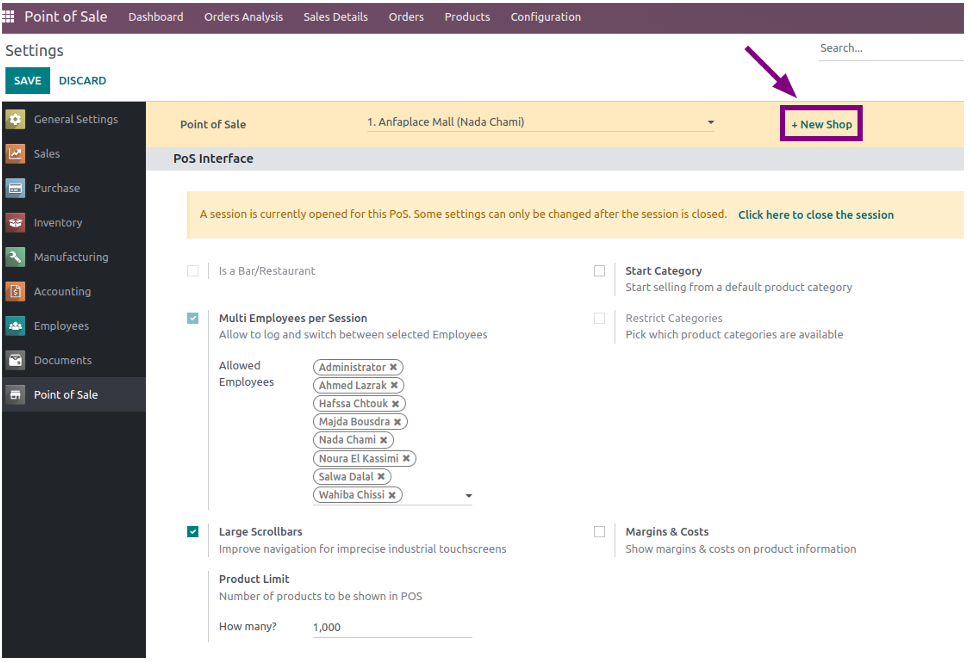
Users with a POS admin role could create a new Shop in Point of Sale > Configuration > Settings choosing a button “New Shop” from the top-left side.
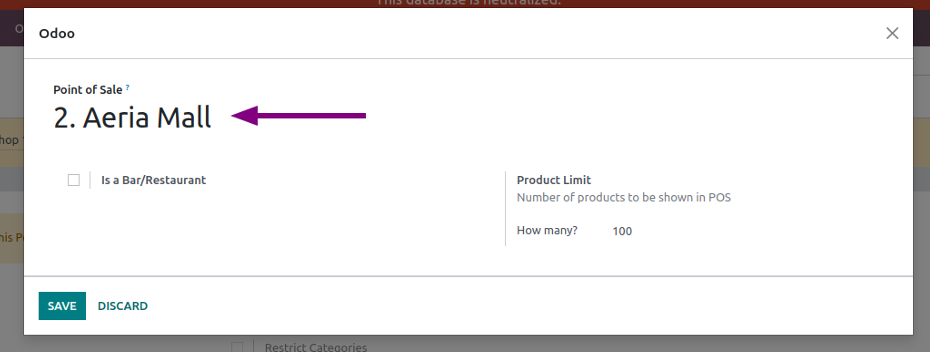
Clicking the “New Shop” button opens a pop-up window where you can define the shop name. By convention, it should be formatted as a serial number followed by the shop location name, as shown in the image below.
Sets User Permissions
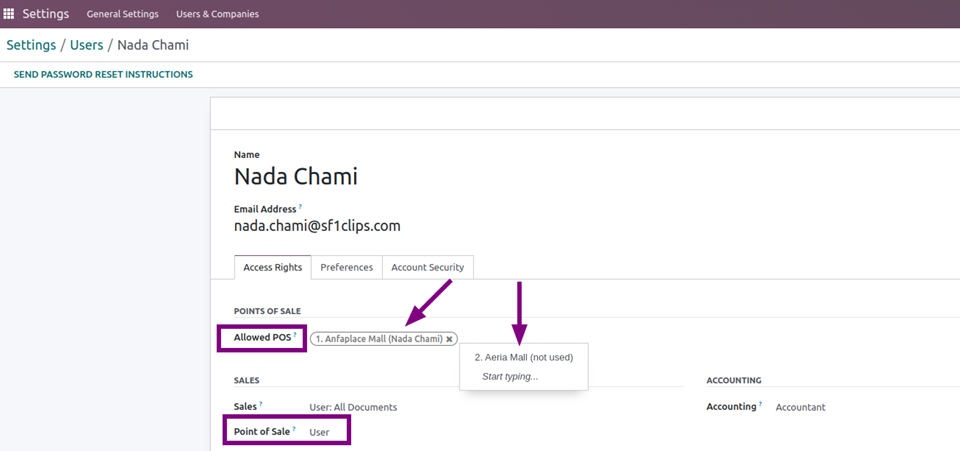
Once a new shop is created, you can set permissions for who can access the shop. By default, the POS admin role can access every shop. However, for the POS user role, you can specify access permissions for each shop separately. To do this, open the user forms in Settings > Manage Users. Select the POS user and specify the allowed POS locations by selecting them.
New Shop Configuration
To configure your new shop, navigate to Point of Sale > Configuration > Settings. From there, select the specific shop you want to configure.
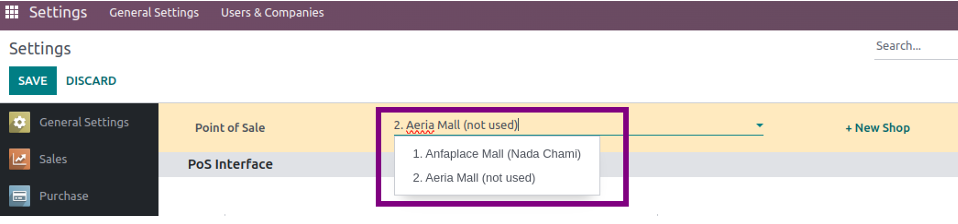
This section allows you to adjust various settings for your shop to fit your business requirements.
PoS Interface
Multi Employees per Session - Allow to log and switch between selected Employees;
Product Limit - Set number of products to be shown in POS;
Stock Configuration in POS
Display Stock in POS - Check this to display stock in pos screen;
Stock Type - Set "Qty Available" as a stock type that will show up in the POS screen;
Stock Position - Top Left;
Product Low Stock - Set “1”;
Stock Location Configuration
Show Stock Of - Choose Current Session Warehouse;
Stock Location - Select Stock location used for inventory transfers;
POS Auto Lock Configuration
POS Auto Lock Configuration - Select POS Auto Lock for the POS screen and set time interval (In Second);
Accounting
Default Sales Tax- Set default sales tax for products;
Default Temporary Account- Select intermediary account used for unidentified customers;
Flexible Taxes- Check Flexible Taxes to get different taxes by order;
Default Journals- Select “Point of Sale” for orders and “Customer Invoices” for Invoices;
Sales
Sales Team- Select Sales Team if it is needed;
Down Payment Product- Select product “Down Payment (POS)” that will be applied when downpayment is made;
Pricing
Flexible Pricelists - Choose Advanced price rules (discounts, formulas);
Product Prices - ChooseTax-Included Price on receipts;
Line Discounts - Check Lines Discount that allow cashiers to set a discount per line;
Global Discounts - Check Global Discounts and set “Discount” as Discount Product and set 10%;
Promotions, Coupons, Gift Card & Loyalty Program - Check Promotions, Coupons, Gift Card & Loyalty Program that will grant customers discounts or gifts and choose “Generate PDF cards”;
Payment
Payment Methods - Select available payment methods
Cash Rounding - You can check Cash Rounding and define the smallest coinage of the currency used to pay by cash in if is needed;
Set Maximum Difference- You can set a maximum difference allowed between the expected and counted money during the closing of the session if it is needed;
Coins/Bills- Select of coins/bills that will be used in opening and closing control;
Connected Devices
ePos Printer- Check ePos printer to connect device to your PoS without an IoT Box;
Inventory
Operation Type- Select operation type to record product pickings. Products are consumed from its default source location.
Barcodes- Select Barcode Nomenclature;
Inventory Management- Choose In real time (accurate but slower) to update quantities in stock;
Technical
Limited Products Loading- Check Limited Products Loading and set the Number of Products Loaded to 500;
Load all remaining products in the background- Check Load all remaining products in the background;
Limited Partners Loading- Check Limited Partners Loading and set the Number of Partners Loaded to 100;
Load all remaining partners in the background- Check Load all remaining partners in the background.
To create a new Dashboard report for the new store, please follow instructions HERE
Was this article helpful?
That’s Great!
Thank you for your feedback
Sorry! We couldn't be helpful
Thank you for your feedback
Feedback sent
We appreciate your effort and will try to fix the article