Creating Dashboard KPIs
POS KPIs reports are found in the Dashboard application. These reports automatically update in real-time based on changes in the POS application. Creating KPI reports involves several steps:
● Based on the created orders in the POS application, filter the orders and create reports using a pivot view.
● Save the created report in a spreadsheet in the Documents application, where you can refine it both functionally and visually.
● Publish the spreadsheet to the Dashboard application within a specific group, allowing users with access to that group to view the report.
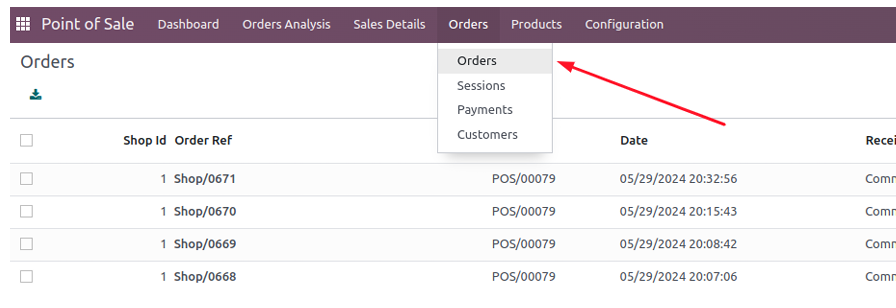
Through the Orders option in the Orders menu, all invoices created in the Odoo POS application are displayed.
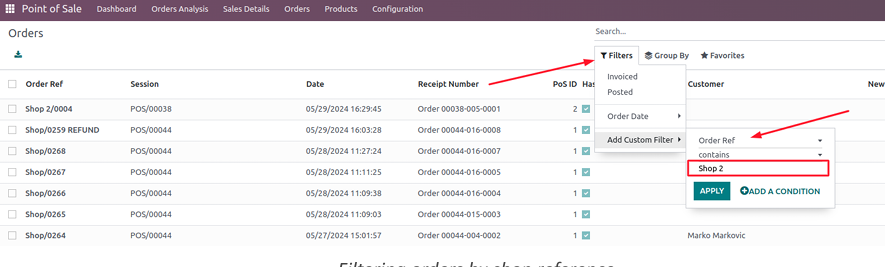
If you want to create a report by a certain shop, you need to filter all invoices by that shop. This is done through the Filter option, where you select the Order Ref option and enter the shop namein the filter field.
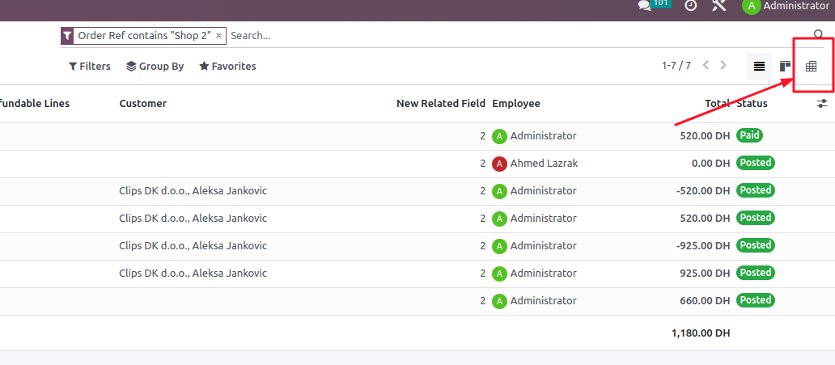
Choose to view the filtered orders through a pivot table (pivot view), by clicking on the icon in the upper right corner.
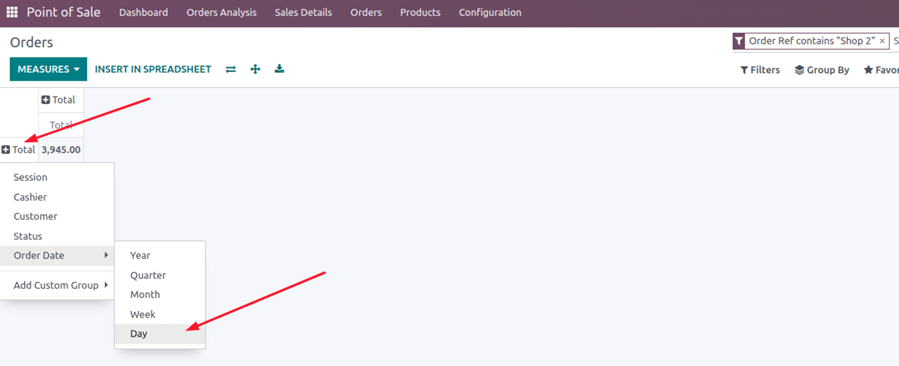
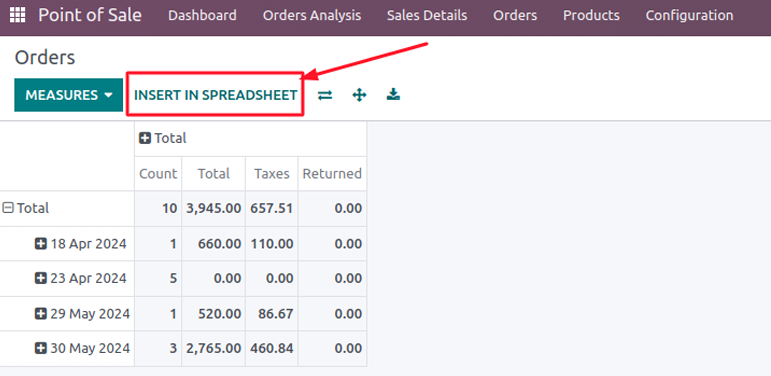
In the pivot table, set the rows to Order Date / Day, and select the following fields as columns: Count, Total, Taxes, Returned within the Measures menu.
Once you get this pivot report, insert it into the Spreadsheet using the “INSERT INTO SPREADSHEET” option.
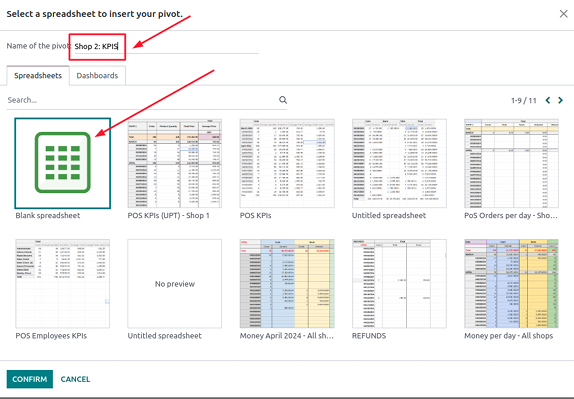
In the new form, choose Blank spreadsheet, enter the name of the new spreadsheet, and click the Confirm button.
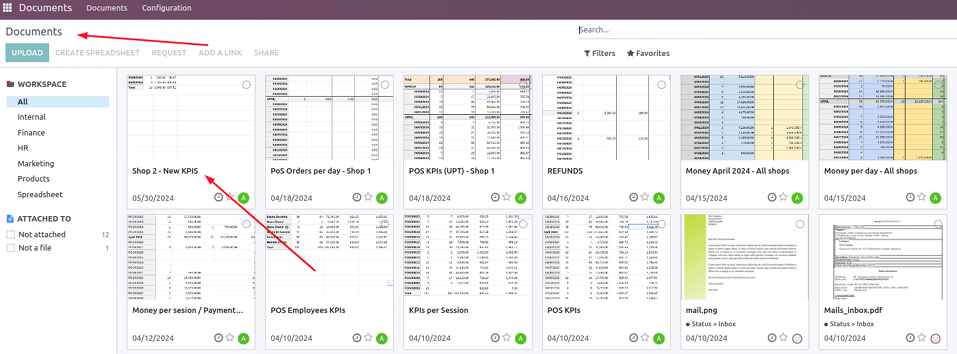
The new spreadsheet is located in the Documents application and opens by clicking on the spreadsheet itself.
Within the newly created spreadsheet, the system transferred data from the pivot view and you could make various functional and visual changes as needed. If you want to add another column with a formula, you can do so using options similar to those in MS Excel or Open Office.
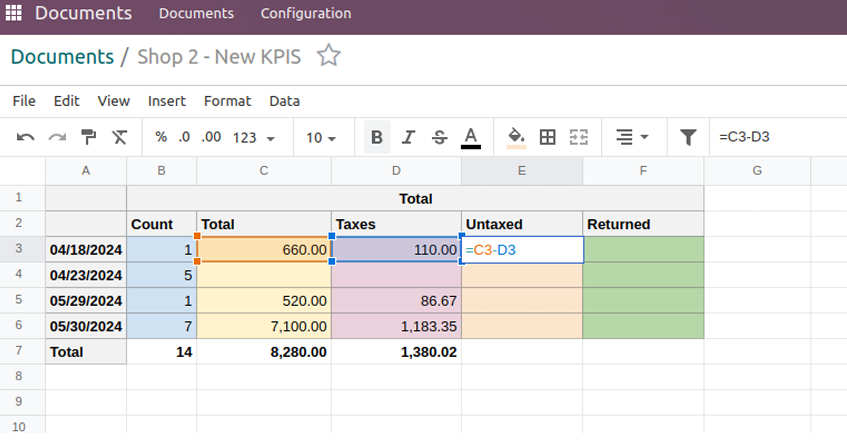
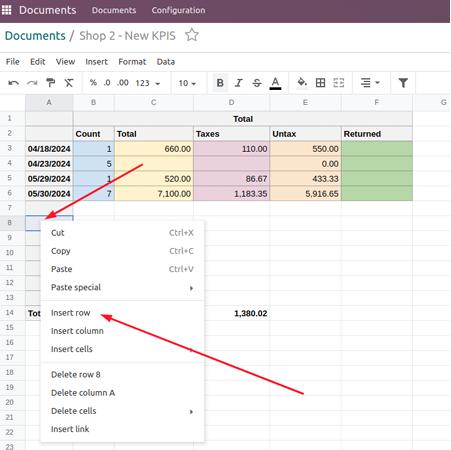
If the report needs to be updated with future data, you need to provide rows for those days in the spreadsheet. Before the “Total row”, add more required rows by right-clicking and selecting “Insert row”.
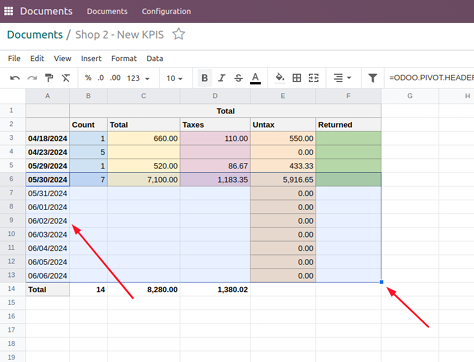
In order to apply formulas from above, highlight all fields of the last row and drag down to update all the empty rows. This way, the report will automatically update with future data.
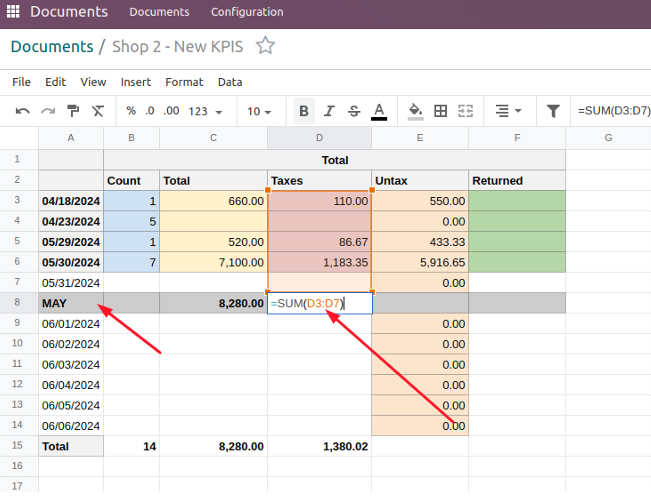
You can insert a new row with additional operations between rows too. For example, sum amounts by weeks or months. Users could do this manually using the basic functionalities similar to those in MS Excel or Open Office.
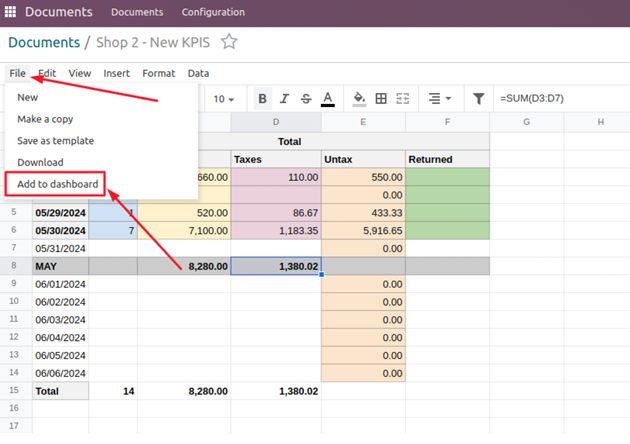
When the report is ready, add it to the Dashboards application through the “Add to dashboard” option in the File menu.
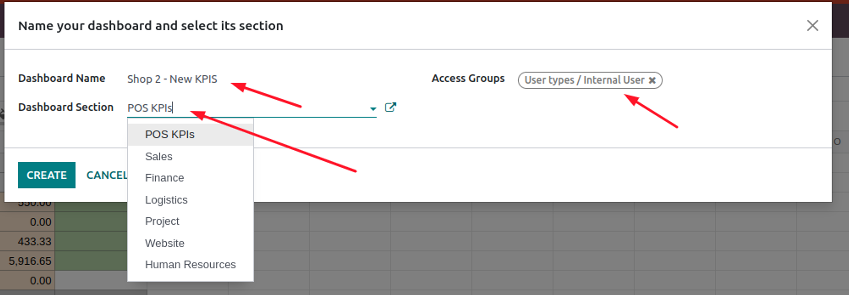
In the new form, you are able to change the Dashboard name, select the section where it should be displayed, and choose the user group that can access the dashboard.
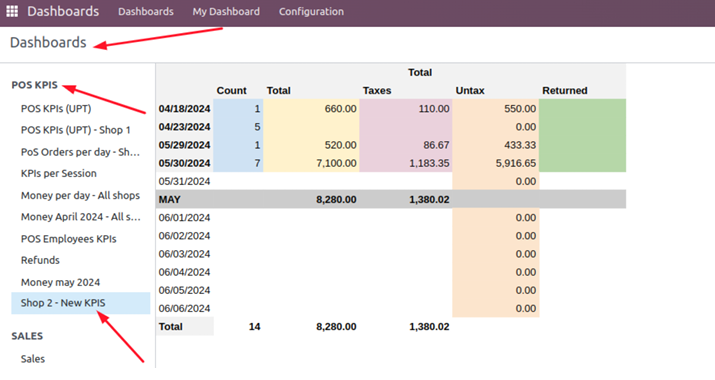
In the Dashboard application, the new dashboard will appear in the selected section. By clicking on the specific dashboard, you can view the orders on which the dashboard is based.
Was this article helpful?
That’s Great!
Thank you for your feedback
Sorry! We couldn't be helpful
Thank you for your feedback
Feedback sent
We appreciate your effort and will try to fix the article