PRODUCT IMPORT INTO ODOO
We prepare item codes that are not in Odoo. We use codes without size.
We upload them into the Product import ODOO table, which is linked to data from MasterData.
Saudi Arabia and Morocco are linked to the IT Master Data file, while Kosovo is linked to the PL Master Data file.
The first column is used as a reference for VLOOKUP.
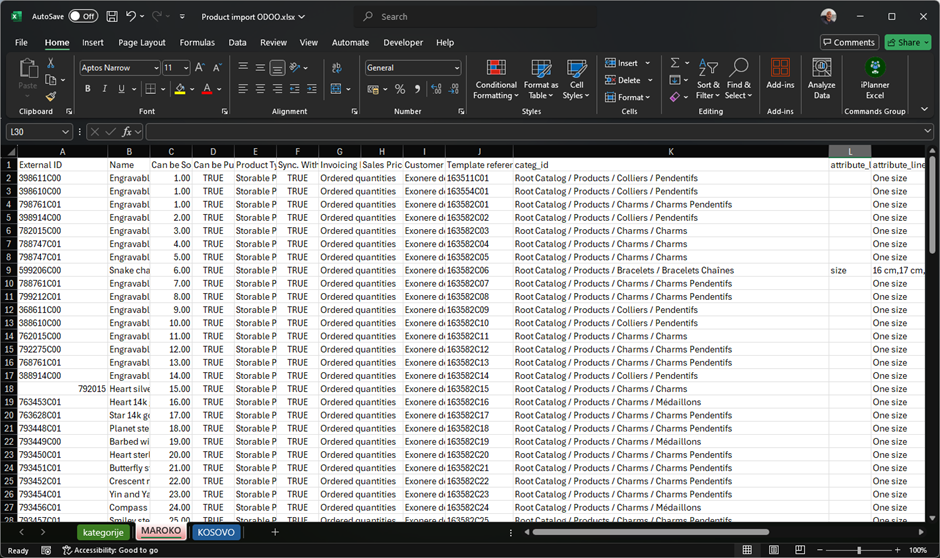
After that, we copy the columns into a new table that will be used for import. The final import file is attached.
The import table is attached.
Below are the explanations of the columns in the import table:
External ID | SKU (base code without sizes) |
Name | From the Master Data file |
Sale | Always set to 1 |
Purchase | Always set to TRUE |
Product Type | Always set to Goods |
Sync. With Magento? | Always set to TRUE |
Invoicing Policy | Always set to Order quantities |
Track inventory | Always set to TRUE |
Sales Price | Not mandatory here; can also be entered at the variant level |
Taxes_id | Always the same value: Sales Tax 15% |
Template reference | SKU (base code without sizes) |
categ_id | Category from Magento (must exist in Magento). In Odoo, it can be found under INVENTORY / Configuration / Product Categories |
attribute_line_ids/attribute_id | Set to size |
attribute_line_ids/value_ids | Attribute values are separated by commas. A period is used as a decimal separator, and a comma is the delimiter. |
Available in POS | Always set to TRUE |
Point of Sale Category | Main categories. In Odoo, they are located at POS / Configuration / PoS Product Categories |
Vendors | Always the same value |
Routes | WH: Riyadh Park: Supply Product from Central Warehouse,Buy,Replenish on Order (MTO) |
Origin of Goods | Always set to Thailand, unless specified otherwise in the Master Data file. |
The prepared file is uploaded into Odoo.
Path:
SALES / Products / Products
Favourites → Import Records
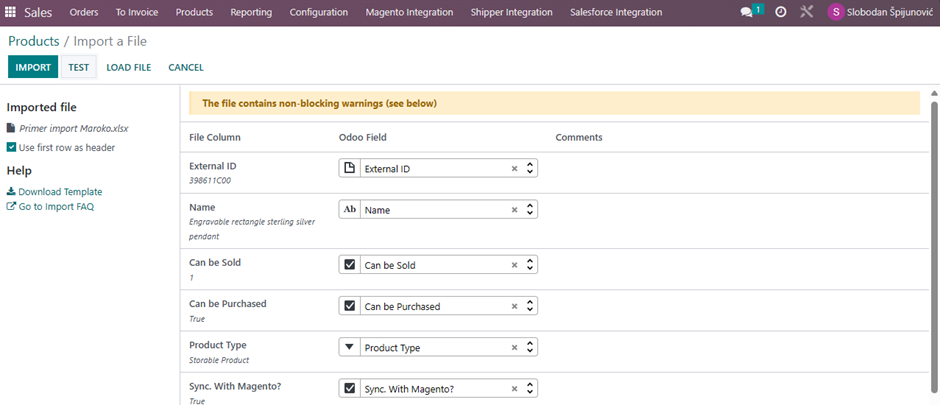
After uploading the file, it is essential to test it before the final import.
Clicking on TEST will indicate if there are any errors in the file that need to be corrected in the table.
- Yellow warnings about repeated values are not errors (e.g., "Found multiple matches for value 'SF1 Clips Ltd.' in field 'Vendors' (100 matches) at multiple rows")
- If everything is OK, meaning there are no red warnings, proceed with the import.
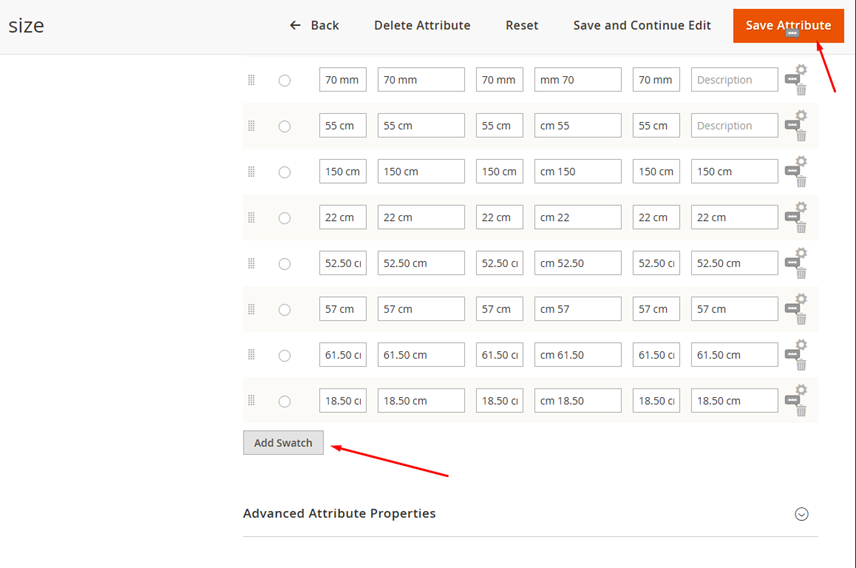
If an error appears during the import stating that the size does not exist, it is necessary to add the missing size attribute value in Magento. Attributes can be found under **Stores / Attributes / Product**. Locate the **size** attribute and add the missing value.
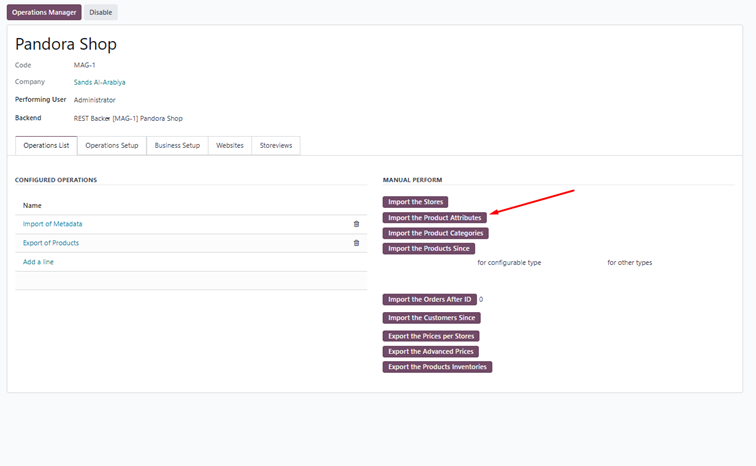
After that, go to Sales / Magento Integration / Setups, select the Pandora shop, and click on Import the Product Attributes.
In the import table, attribute values must be entered as they are in Odoo. If the format differs from the data in Masterdata, we adjust them accordingly.
Preparing the File for Importing Variants
After the import, the next step is to prepare the file for importing product variants.
First, export the template, which is currently sent to the analytics department for completion.
The template is obtained as follows:
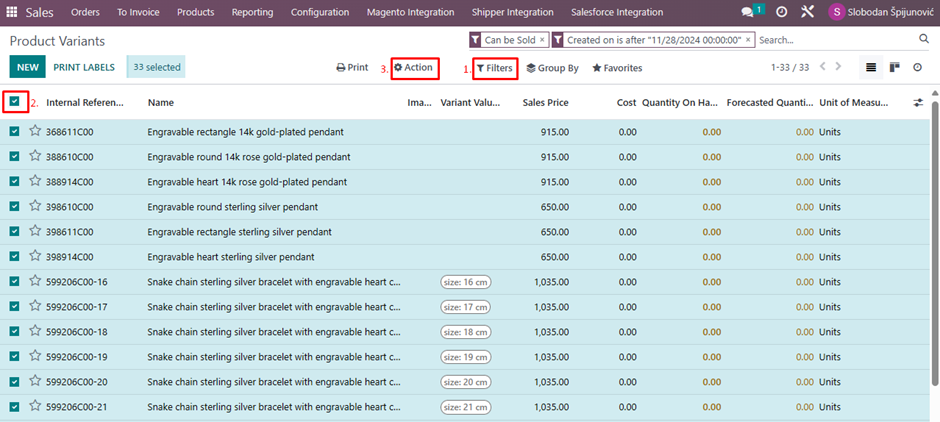
Exporting the Template for Product Variants
Go to:
SALES / Products / Product Variants
- Filter by Creation Date:
- Click Filters → Add custom filter
- Select Created on → Set value to "is after"
- Enter today’s date
- Click Apply
- Select the Newly Imported Articles:
- In the top left corner, select all listed articles
- Export the Data:
- When the desired articles are selected, the Action button appears
- Click Action → Export
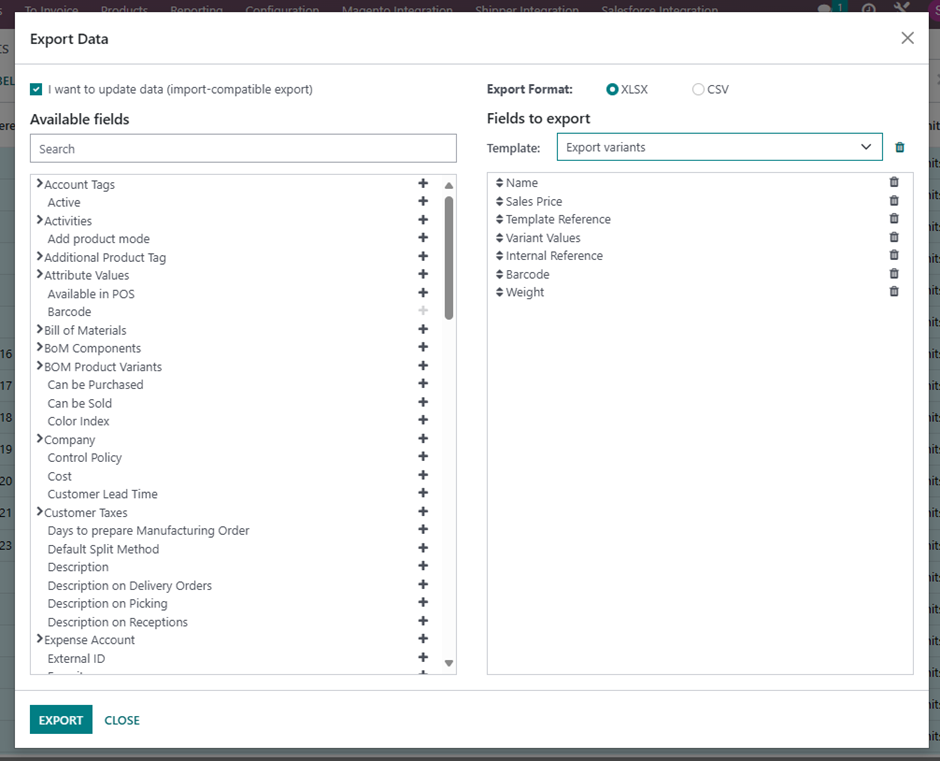
Exporting Product Variants for Data Completion
- On the pop-up window, select:
- ✅ I want to update data (import-compatible export)
- In the Template section, choose Export Variants
- If there is no existing template:
- In the left panel, search for the following fields and move them to the right using the +button:
- Name
- Sales Price
- Template Reference
- Variant Values
- Internal Reference
- Barcode
- Weight
- Click Export
- In the left panel, search for the following fields and move them to the right using the +button:
Importing the Completed Variant File
- Receive the completed file from the analytics department
- Go to:
SALES / Products / Product Variants → Favourites → Import Records - Ensure the file contains the following columns:
- Id
- name
- default_code
- barcode
- weight
- Upload the file, test it, and import it.
Was this article helpful?
That’s Great!
Thank you for your feedback
Sorry! We couldn't be helpful
Thank you for your feedback
Feedback sent
We appreciate your effort and will try to fix the article