1. Log in to Shipper application with your credentials on link https://pandora-ma.shipper1.com/
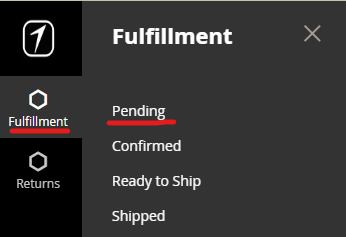
2. Go to Fulfillment - Pending to see all the ordered products and customer information
3. You can see all the order details and on the right side, you can see action buttons to confirm or reject products in every order. 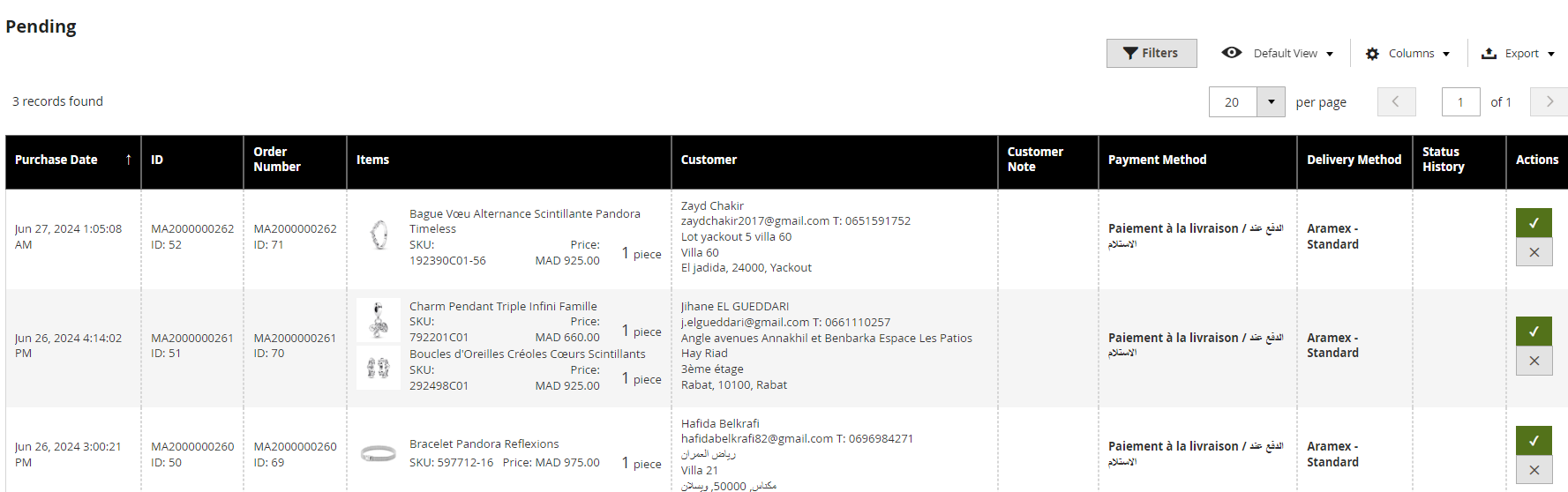
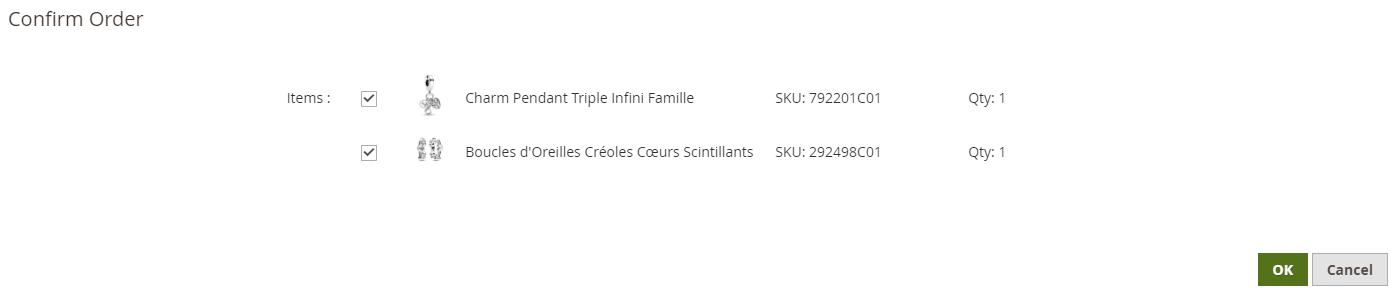
4. Click ✅ or ✖ to open popup
5. You can confirm or reject Partially or Fully by checking or unchecking boxes in popup
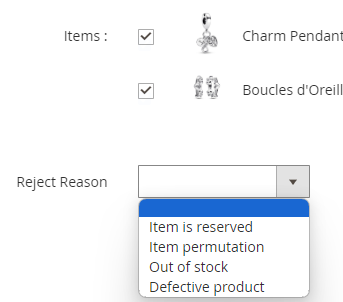
6. If you are rejecting a product for an order, you have to pick the reason why are you rejecting (from the drop down meny)
7. Go trough all the orders with the same procedure.
8. All confirmed orders automatically move to Confirmed tab and you can see them here.
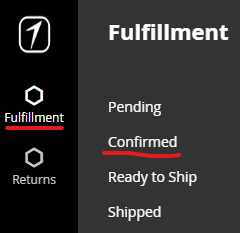
This will also send them to Odoo, and we can process them further. For processing orders in Odoo and creating invoices, you can find instructions HERE.
9. When the invoices are created, you can see them in the Ready to ship tab.
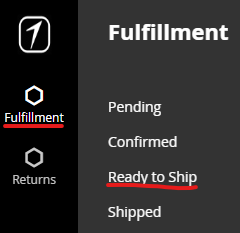
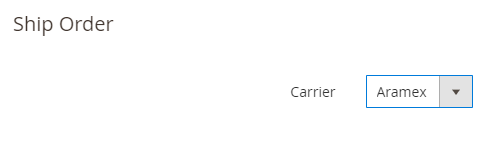
10. From this tab you can create shipments automatically by clicking on button Ship and picking Aramex as Carrier in dropdown menu.
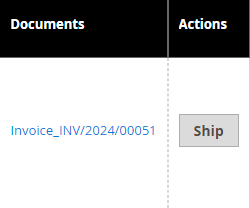
11. You can also Download invoices so that you can print them out by checking the orders and then Actions - Download Invoices. You can also download one by one by clicking on the link invoice_INV.. in the Documents column.
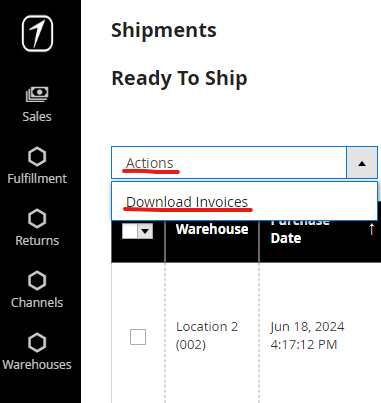
12. When you Ship the orders, they are sent to the tab Fulfillment - Shipped, and from this tab you can Download all the invoices and also all the labels for carrier.
Was this article helpful?
That’s Great!
Thank you for your feedback
Sorry! We couldn't be helpful
Thank you for your feedback
Feedback sent
We appreciate your effort and will try to fix the article