1. Shipper
First we create a return in Shipper aplication
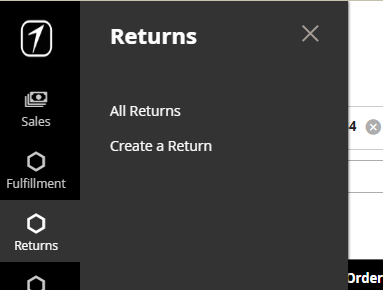
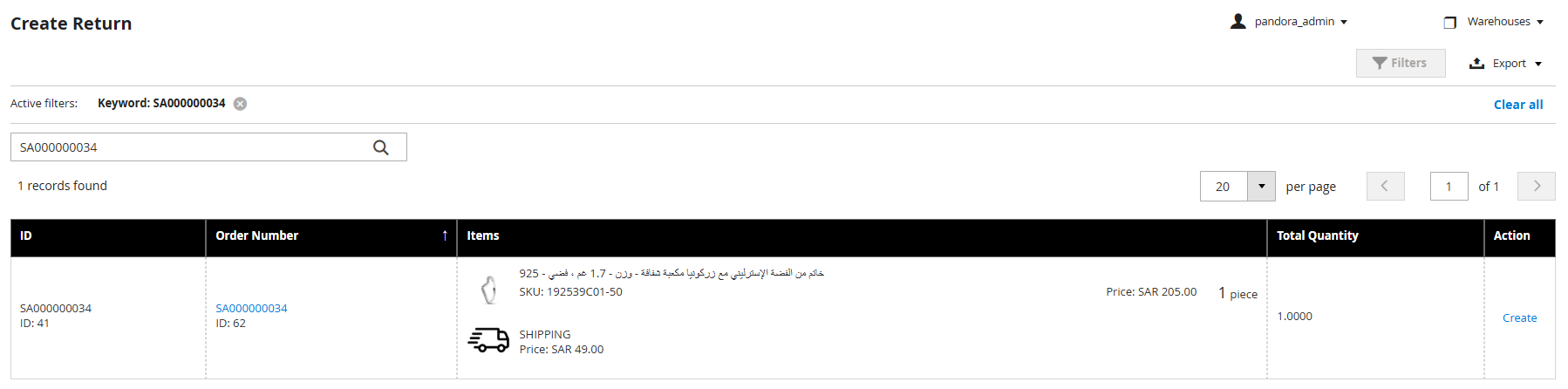
Returns - Create a return; you must fill in the whole exact number of the order in filter. Warehouse must be set to specific store (for Example Granada Mall in the top right corner of the screen).
When you see the order click on "Create"
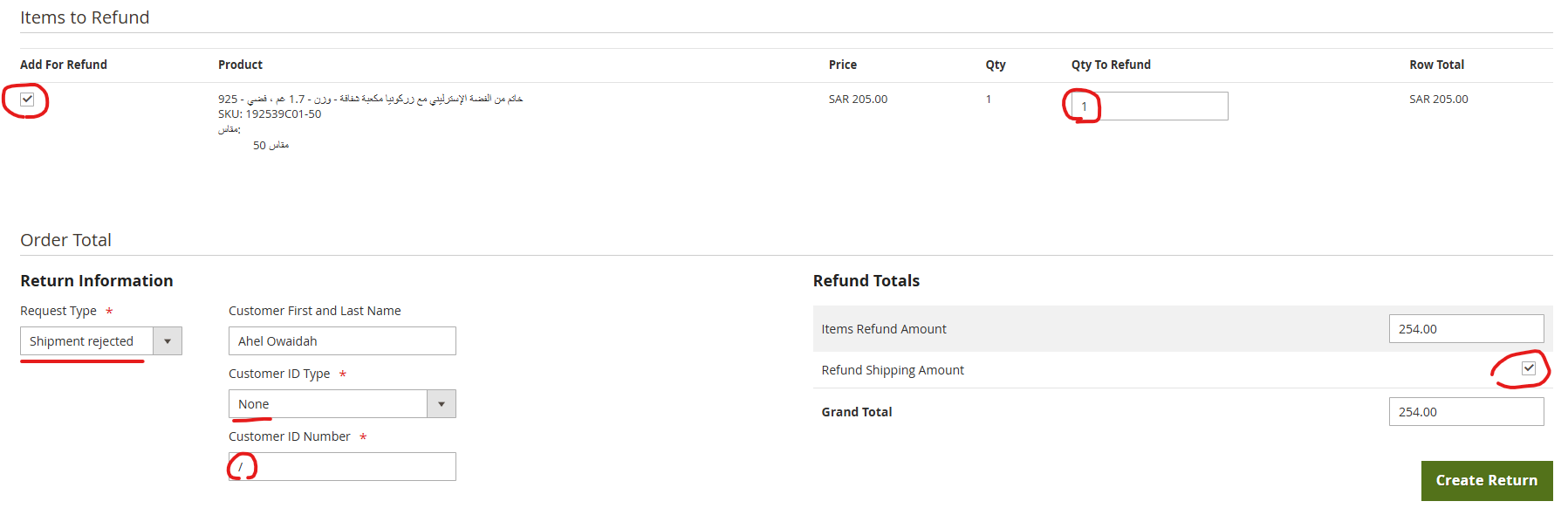
Check the product you want to return, adjust quantities if needed, select request type, customer ID and if needed check to return shipment amount too. Then go to Create Return (green button)
2. Odoo
Go to Odoo - Sales module - Quotations - and find the order that you wish to return.
Enter the order.
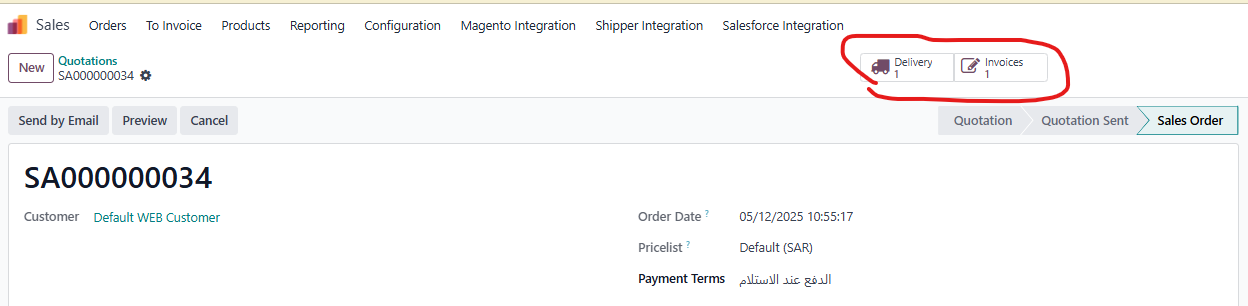
When you enter the order you will see that it has invoice and delivery. We should reverce both the processes, first we reverse invoice and then delivery.
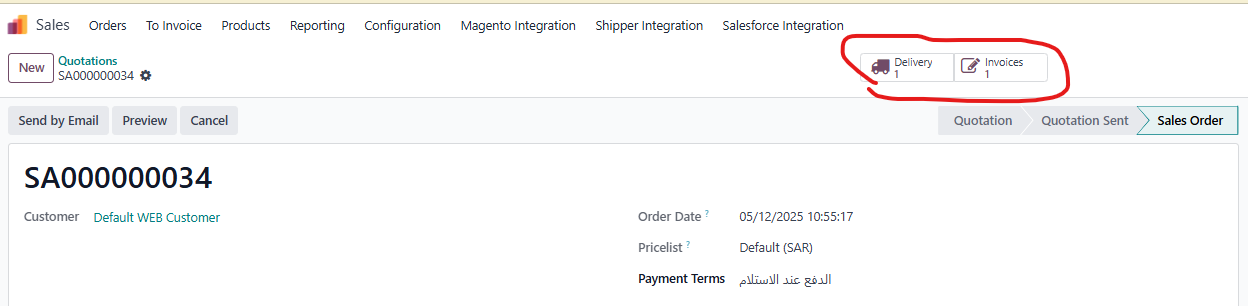
We click on "Invoices" icon and then go to "Credit note", we type the reason for return, and then go to purple "Reverse" and then purple "Confirm" at the top left corner.
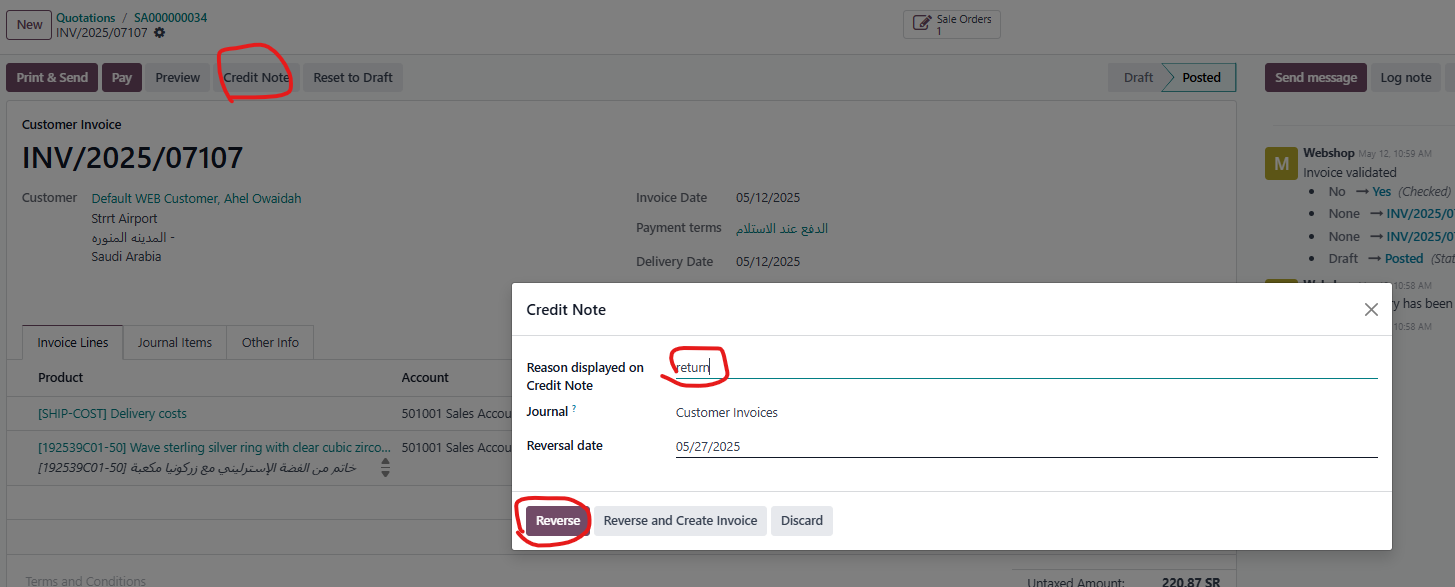
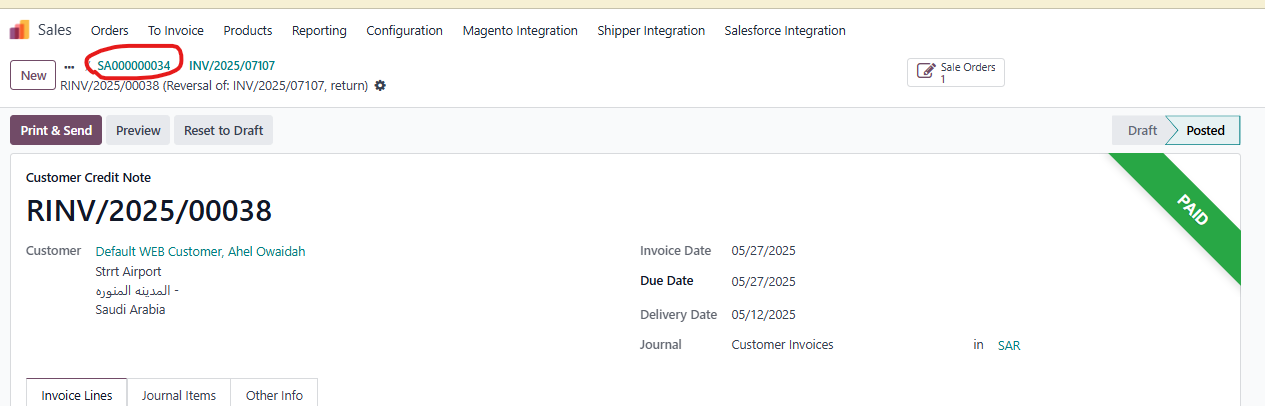
To return on quotation, we can click on breadcrumbs in the top left part of the screen
Now we click on Delivery icon
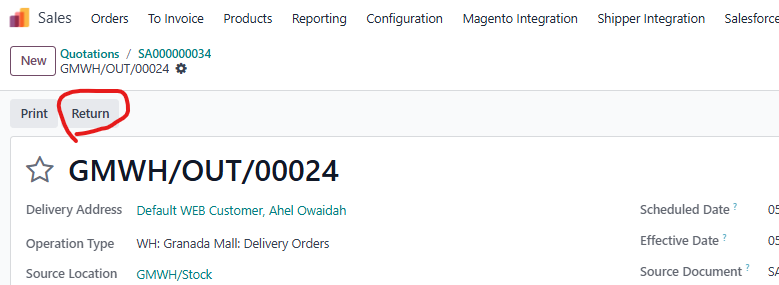
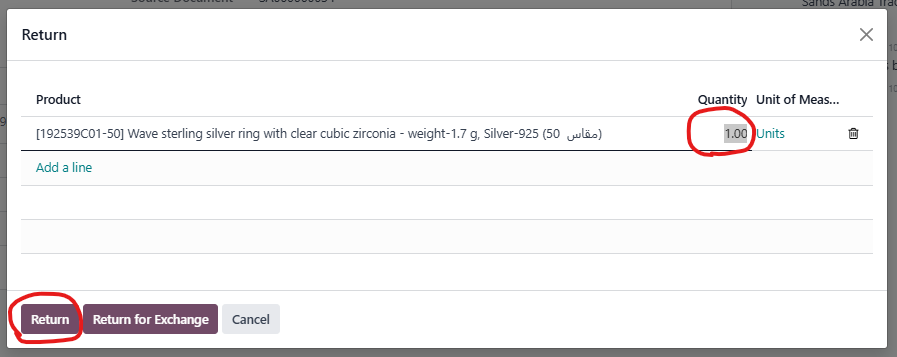
We click on return button
We set the quantitie and go to Return
Then Validate
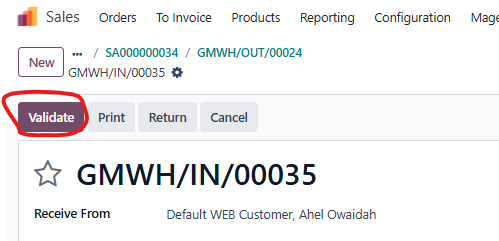
The process is finished.
Was this article helpful?
That’s Great!
Thank you for your feedback
Sorry! We couldn't be helpful
Thank you for your feedback
Feedback sent
We appreciate your effort and will try to fix the article