Once the orders are confirmed in Shipper, they will automatically go to Odoo, so it is very important to have the articles both physically and in ERP stock, otherwise, we will not be able to process the orders.
So, to process the orders, we go to https://proderp.pandorashop.ma/web#cids=1&action=menu
and once there we click on the SALES icon:
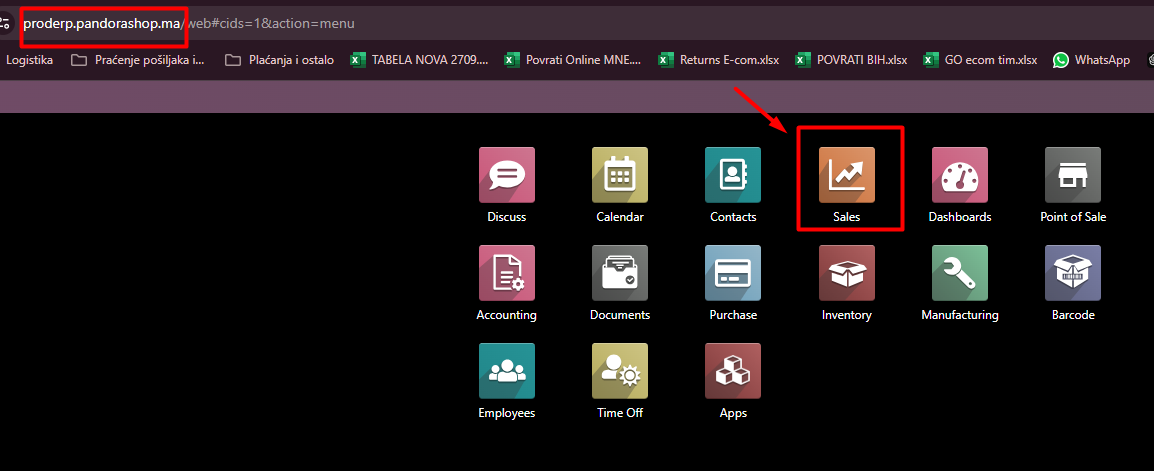
When we click on the SALES icon, the new screen will appear and open the orders menu; orders will be marked as QUOTATIONS and will be blue:
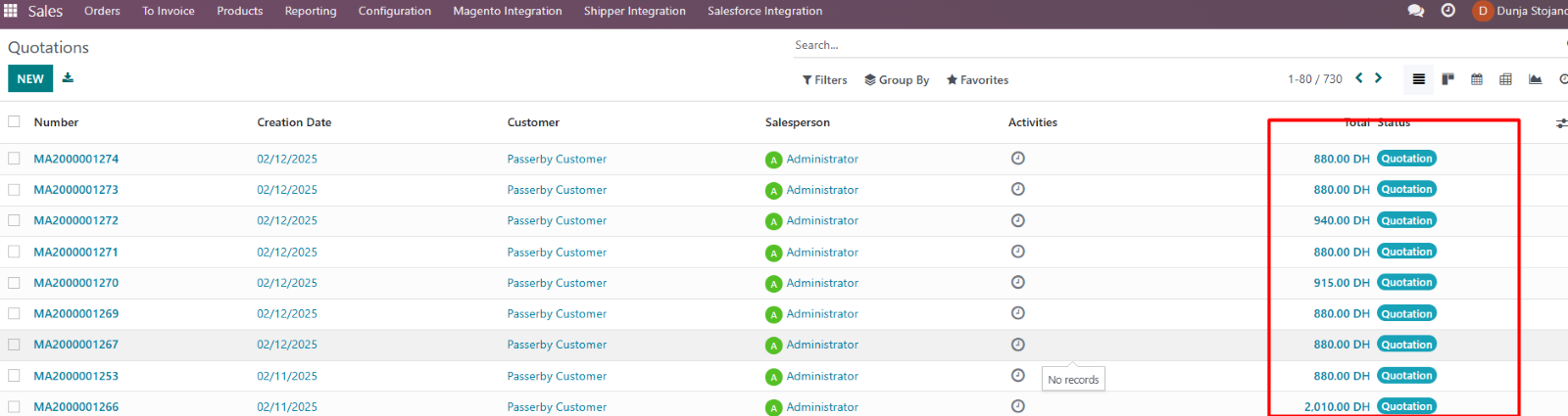
Firstly, we need to confirm those quotations and we do that by selecting all of them in need of confirmation and then clicking the ACTION button, then, we choose the CONFIRM QUOTATIONS button. ***IMPORTANT NOTICE: you will NOT have an ACTION button unless you select at least one order:
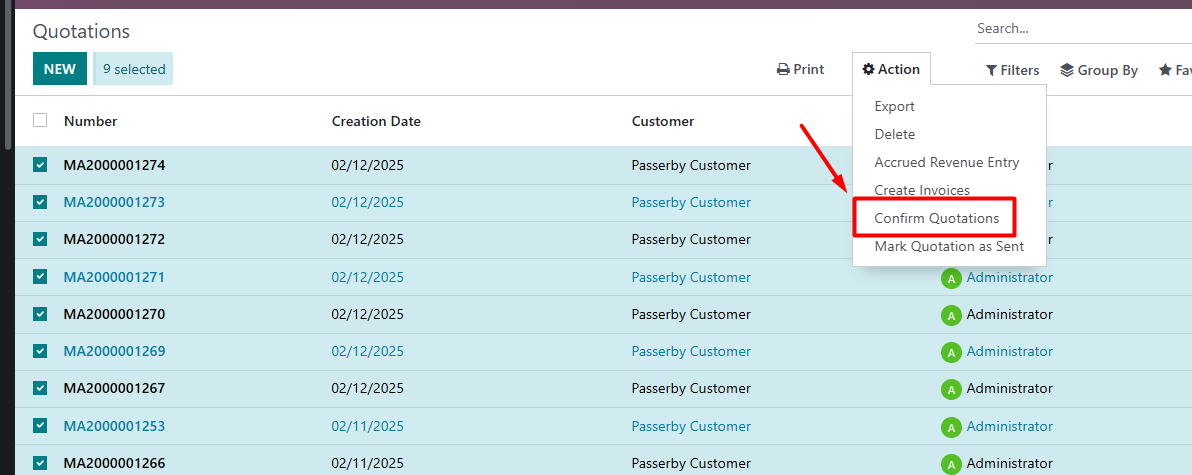
Once confirmed, they will no longer be called quotations but SALES ORDERS, but do not be alarmed – they will still be on the SALES list and will be first on the top (as they are newest date).
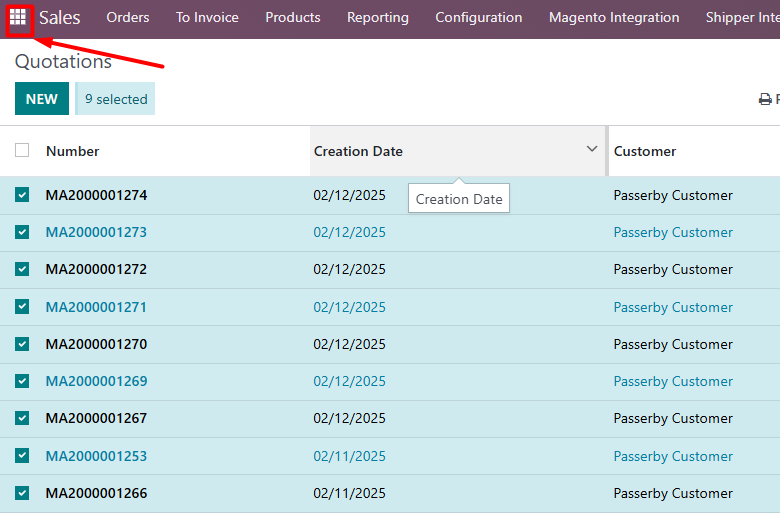
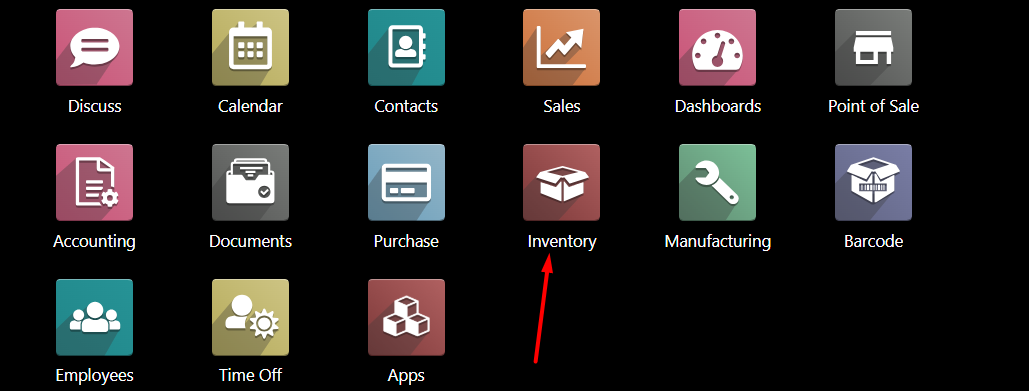
What we want to do next is transfer articles from Anfa place to WEB stock and we do that by going back to the home screen by clicking this button and once on the home screen, we want to choose INVENTORY button:
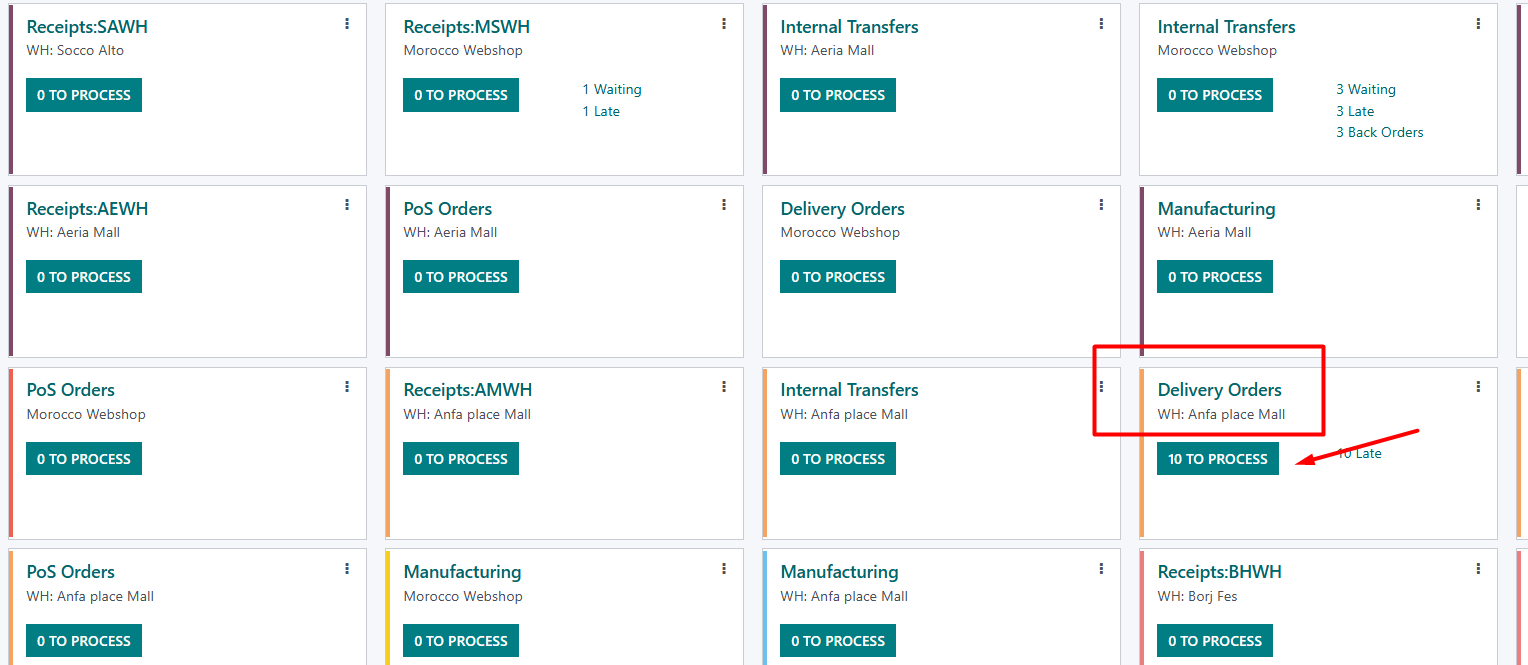
Inventory will open a big list of all the stocks we have and all the types of documents – the ones we are looking for are called DELIVERY ORDERS and will always have the number same as number of confirmed orders that day – we click on this big greenish button where it says 10 TO PROCESS:
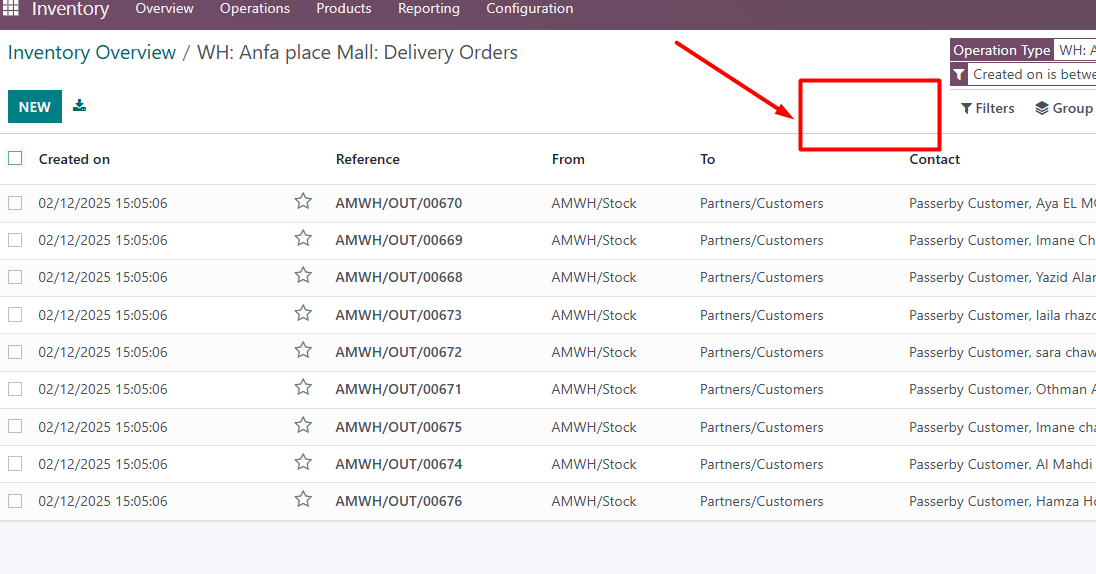
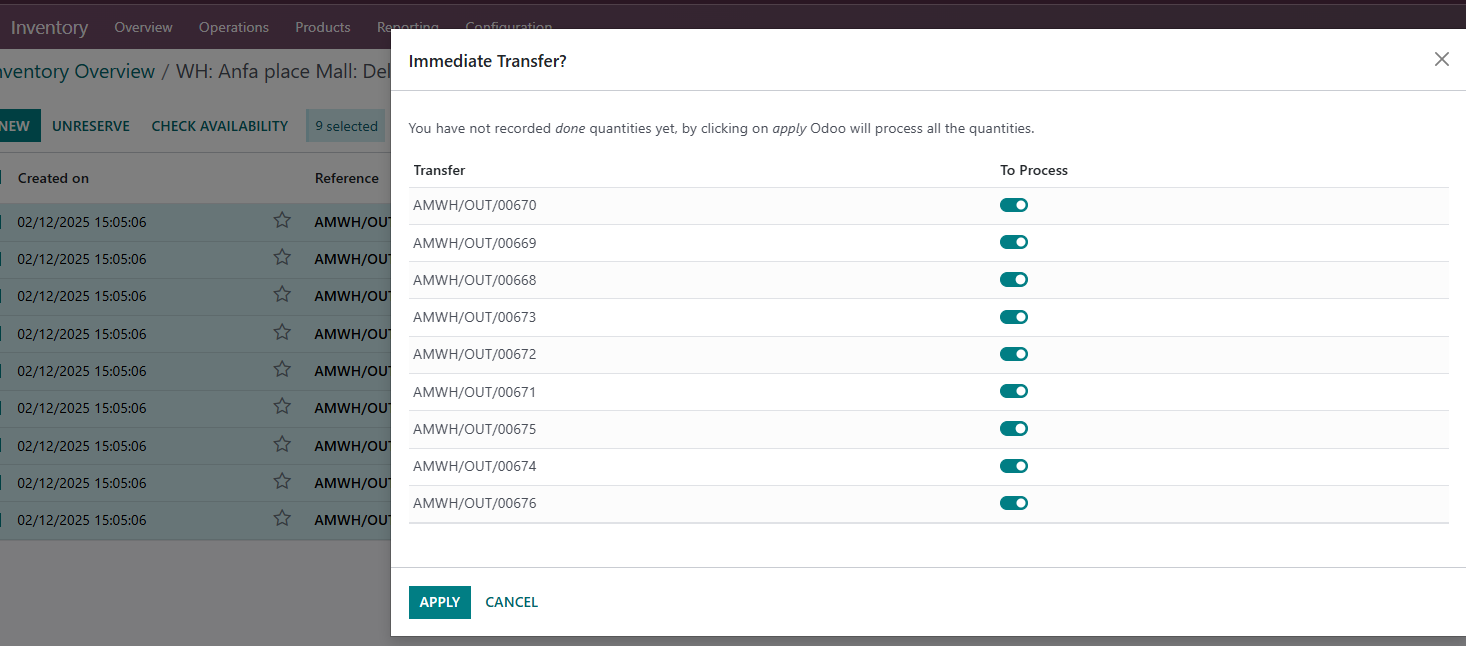
Once again, we need to select at least one order so we get the ACTION button
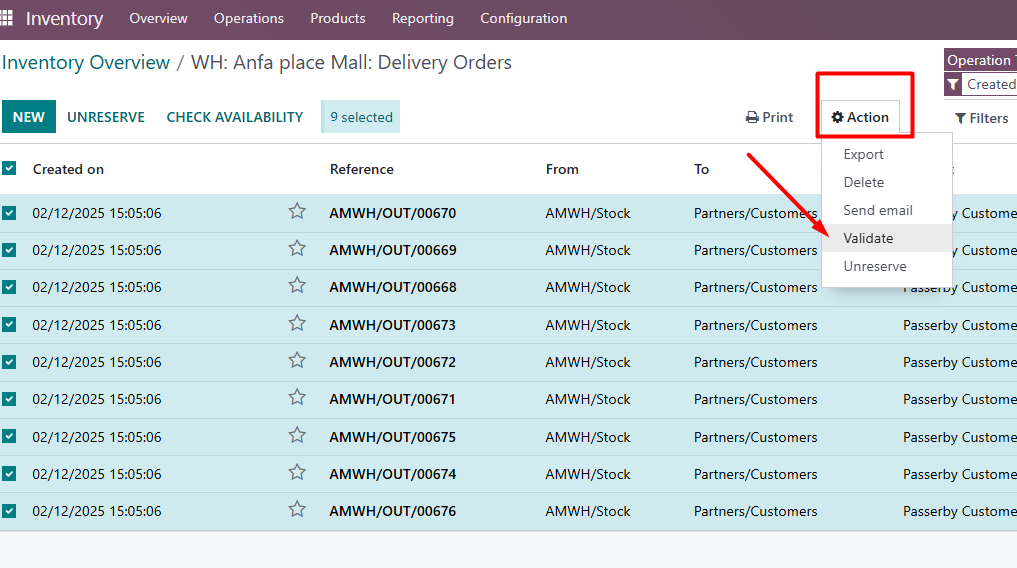
When we click on VALIDATE, next pop up shows and we click big greenish button that says APPLY
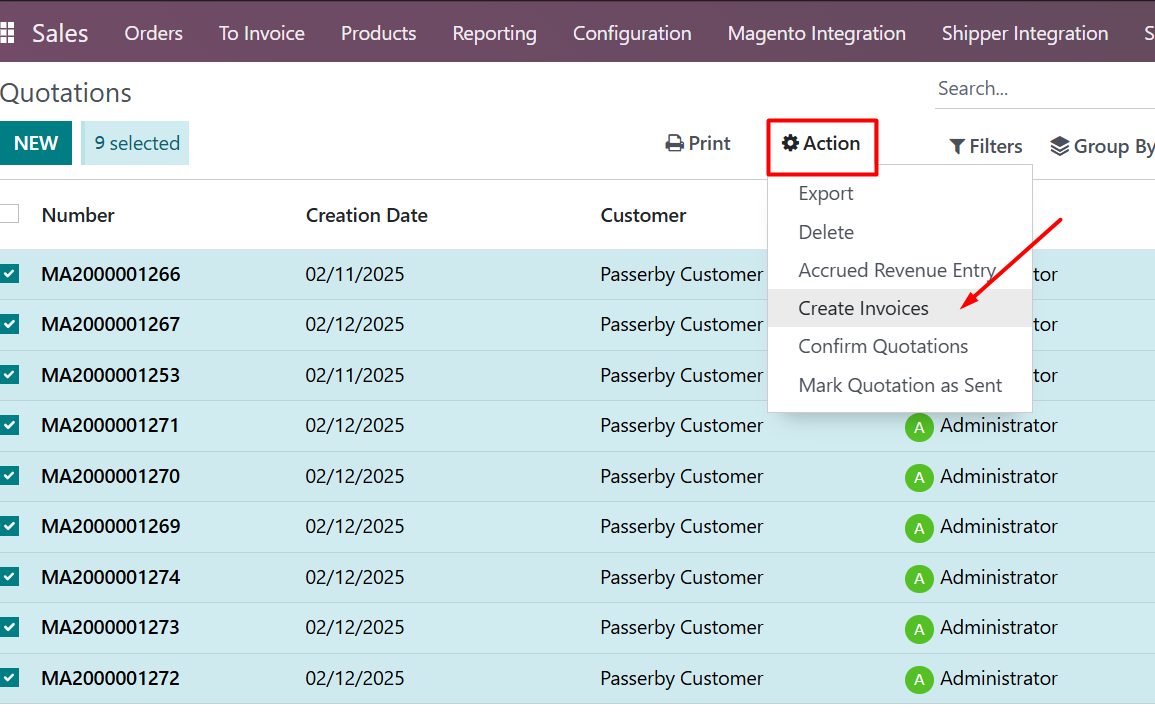
So the transfers are now done, we have articles on our WEB stock, the only thing left to do is create invoices so we can REMOVE those articles from the WEB or how we say – to invoice them. That is done by returning back to HOME screen and then again clicking on SALES button; once again we need to select at least one order to get the ACTION button, then we click on CREATE INVOICES and on the next popup screen we go to CREATE AND VIEW INVOICES (again the big greenish button)n)
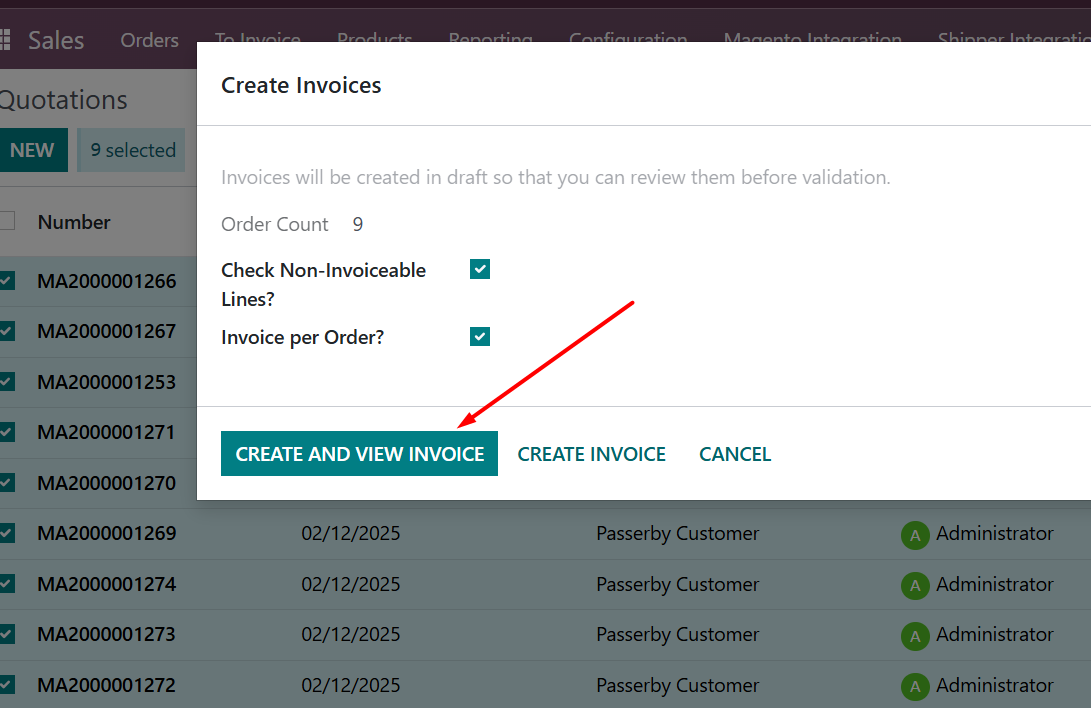
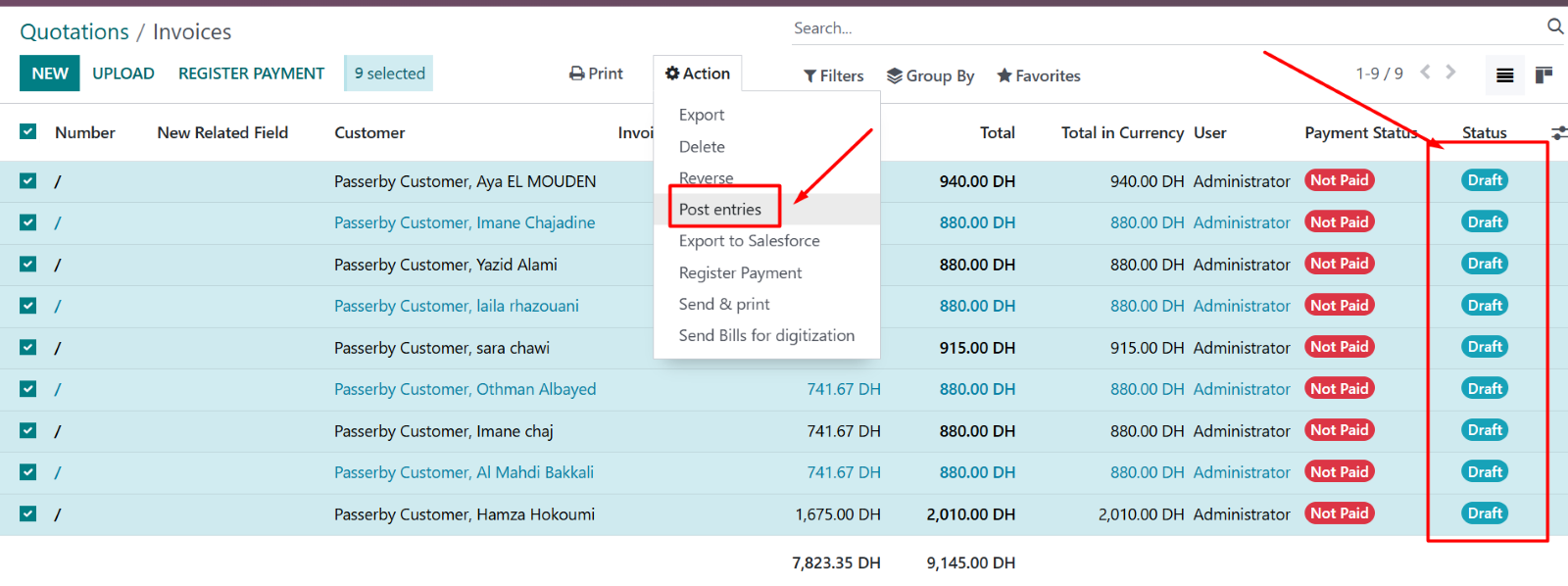
When we click on this greenish button, we will create invoices and new screen will appear with all those invoices on the list and they will ALL be on DRAFT status; to change them from DRAFT to actual fiscalised invoices, we press the ACTION button and we select POST ENTRIES
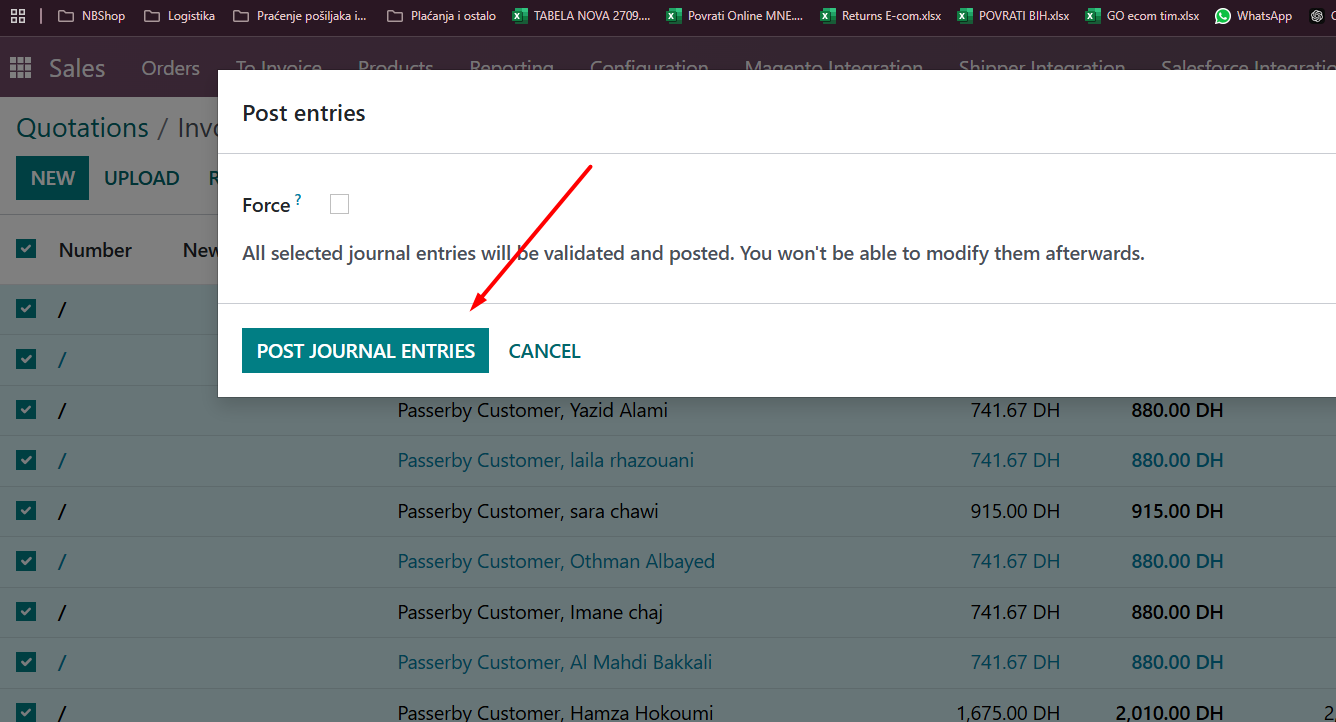
And will finally come to this poppup where we click POST JURNAL ENTRIES
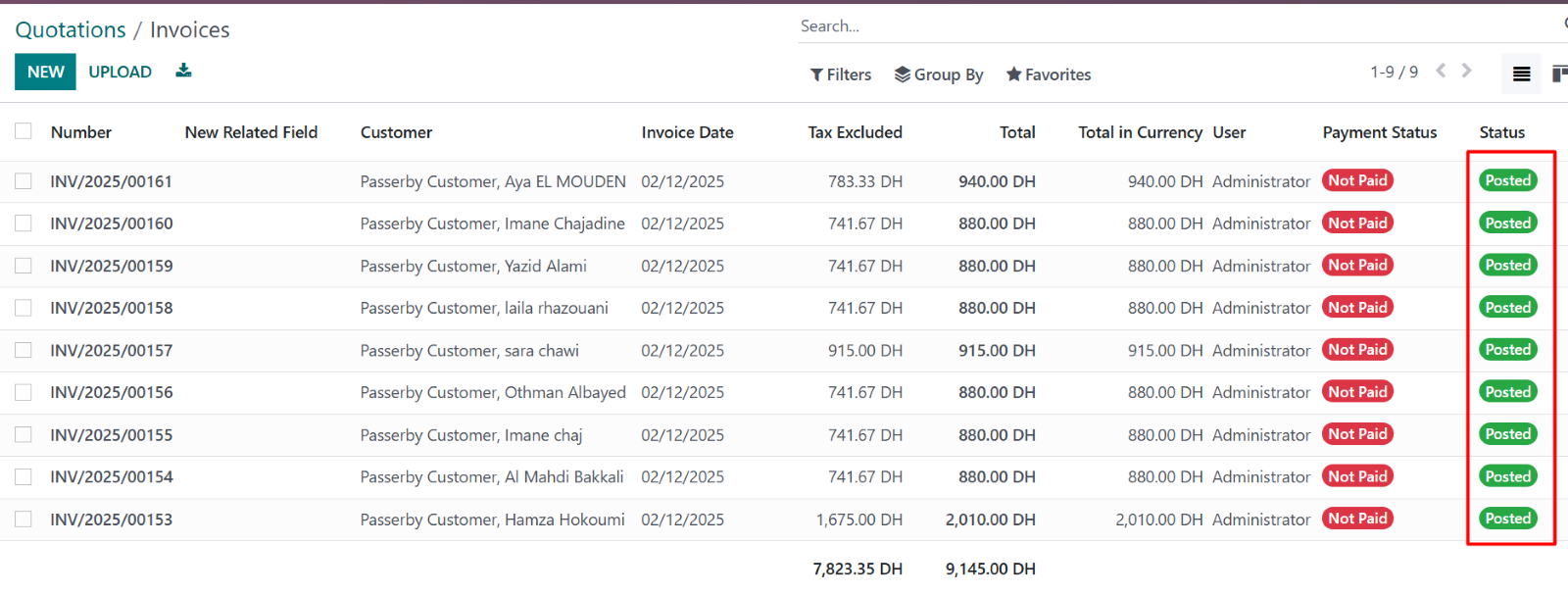
They will finally look like this and have the status POSTED
This is all that needs to be done in Odoo in order to process the invoices. All the next steps are done in Shipper and are explained in another tutorial.
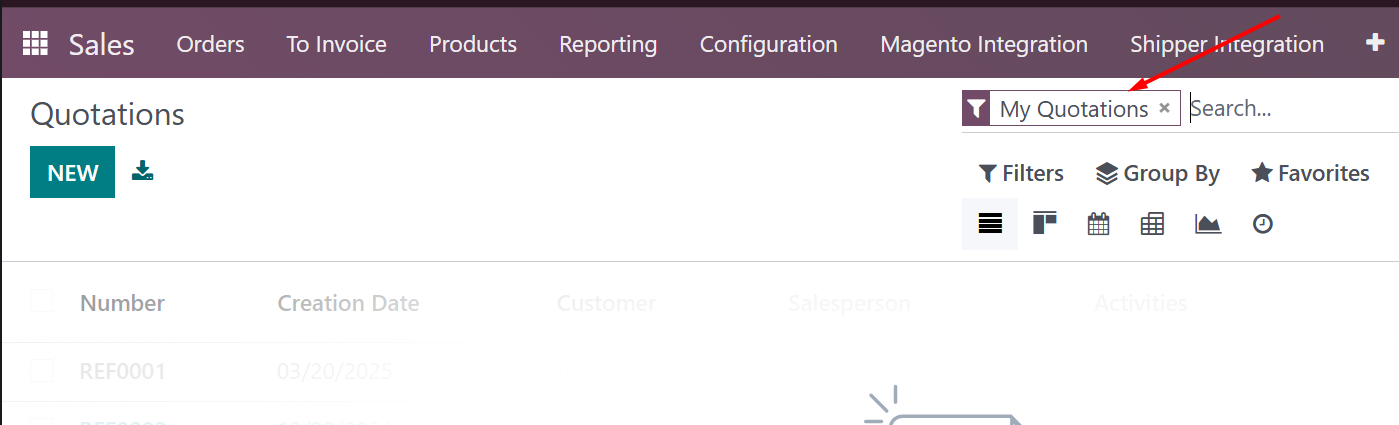
****Small disclaimer – every time we go to the SALES, we need to remove the filter that is applied by default and looks like this (just click on the X sign inside filter)
Was this article helpful?
That’s Great!
Thank you for your feedback
Sorry! We couldn't be helpful
Thank you for your feedback
Feedback sent
We appreciate your effort and will try to fix the article