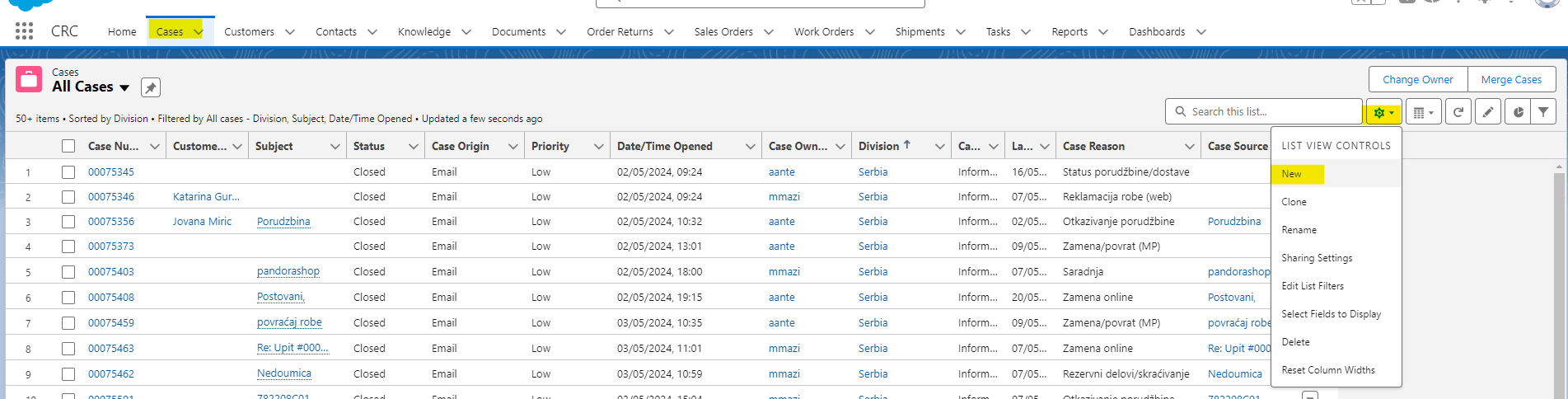
In the CRC module, Go to Cases, then click on a gear wheel icon (List view control) and then New
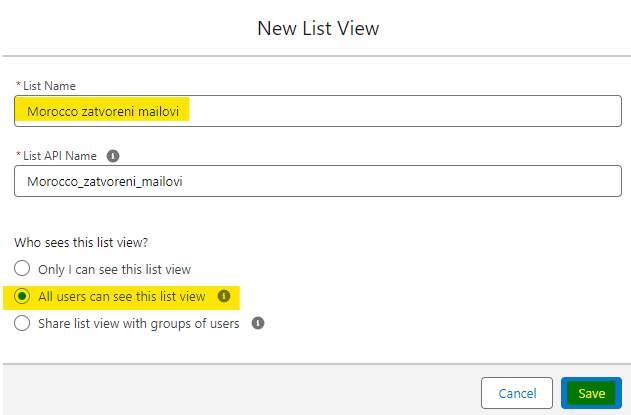
You will get a pop-up, fill in the "List name" (List API Name will be filled in automatically) and click on "All users can see this list view", then click Save.
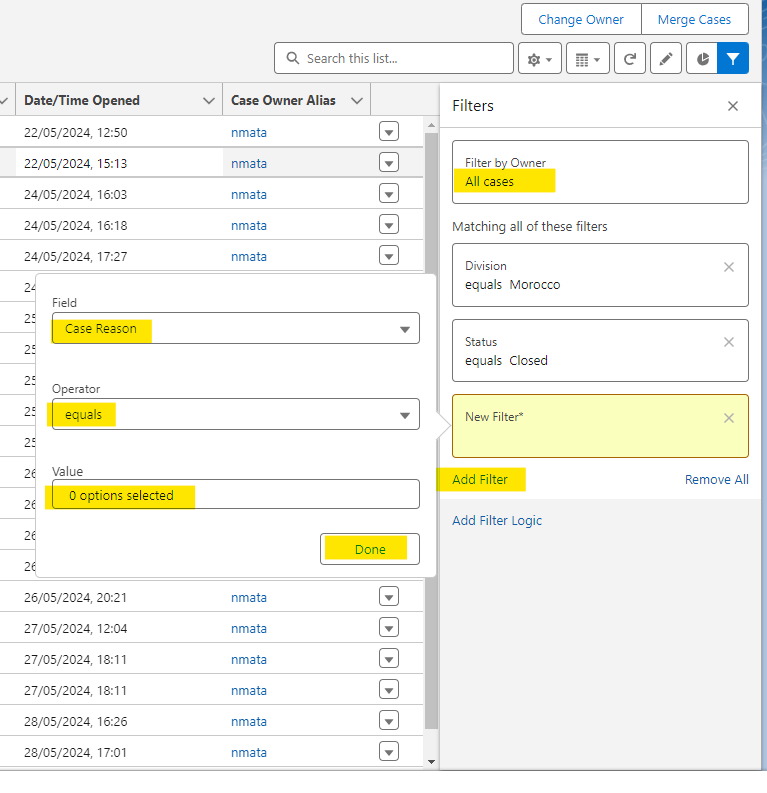
You can now see all the cases, filter out those you need on the right side of the screen.
Make sure you change the filer to "All cases" first, default value is "My cases" and the cases are not usually assigned to you. You can use all cases if you want to make a list of cases you have already took for yourself.
Go to Add Filter and choose the value you want to filter out. It can be a Division (country), Case reason, Status, Date/Time opened, Date/Time Closed or any other filter you consider relevant for your search.
When you are done, click on the blue SAVE button.
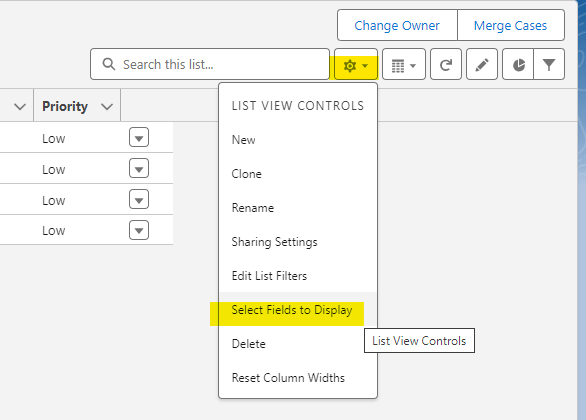
You can also change the fields you see in your List View.
Go to gear wheel icon and click "Select Fields to Display"
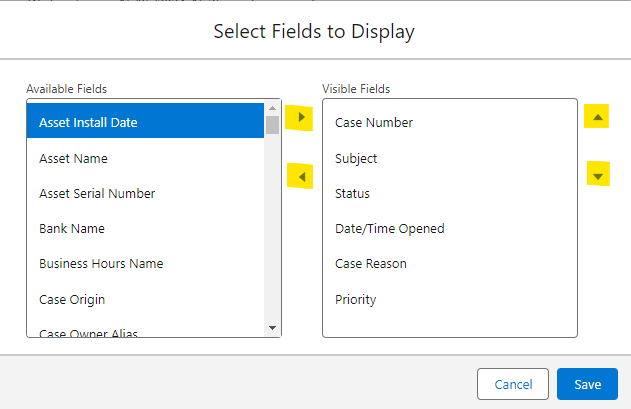
You will get this pop-up
In the left side are all the fields you can possibly see in the list view, and on the right side are all the Visible Fields you have chosen to see on your specific list.
To add a new field to your list view, select it and click on right arrow. It will be added from Available Fields to Visible Fields.
To remove an existing List view field, select in on the left side and click the left arrow. It will be reduced from the Visible Fields.
You can change the position of how your fields are displayed by selecting a filed on the left and then clicking on up and down arrows to move it.
Was this article helpful?
That’s Great!
Thank you for your feedback
Sorry! We couldn't be helpful
Thank you for your feedback
Feedback sent
We appreciate your effort and will try to fix the article