You can all the product categories by going on module Point Of Sale, in menu choose Configuration - PoS product categories.
Categories have 2 levels:
1. Parent categories - e.g. Bracelets
2. Child categories - e.g. Bracelet Bangle, Bracelet chain...
Every child category should have a parent category set up.
You can edit a category name and parent by clicking on it. You can add new categories by clicking on NEW anytime, but you can only delete the category if all the POS sessions are closed.
You can also set up the category color, translation for Arabic (by clicking on EN button), or category image.

IMPORTANT TO NOTE:
All the changes will affect the way that categories are shown in POS and it can help the store staff to more easily manipulate the POS system, but making a complicated POS scheme can make it difficult for the store staff to use POS.
They will see in POS only the categories that have products in them.
Therefore, POS product categories must be set on products level.
We can do this manually on single product, or on large amount of products through an Excel sheet.
Manually:
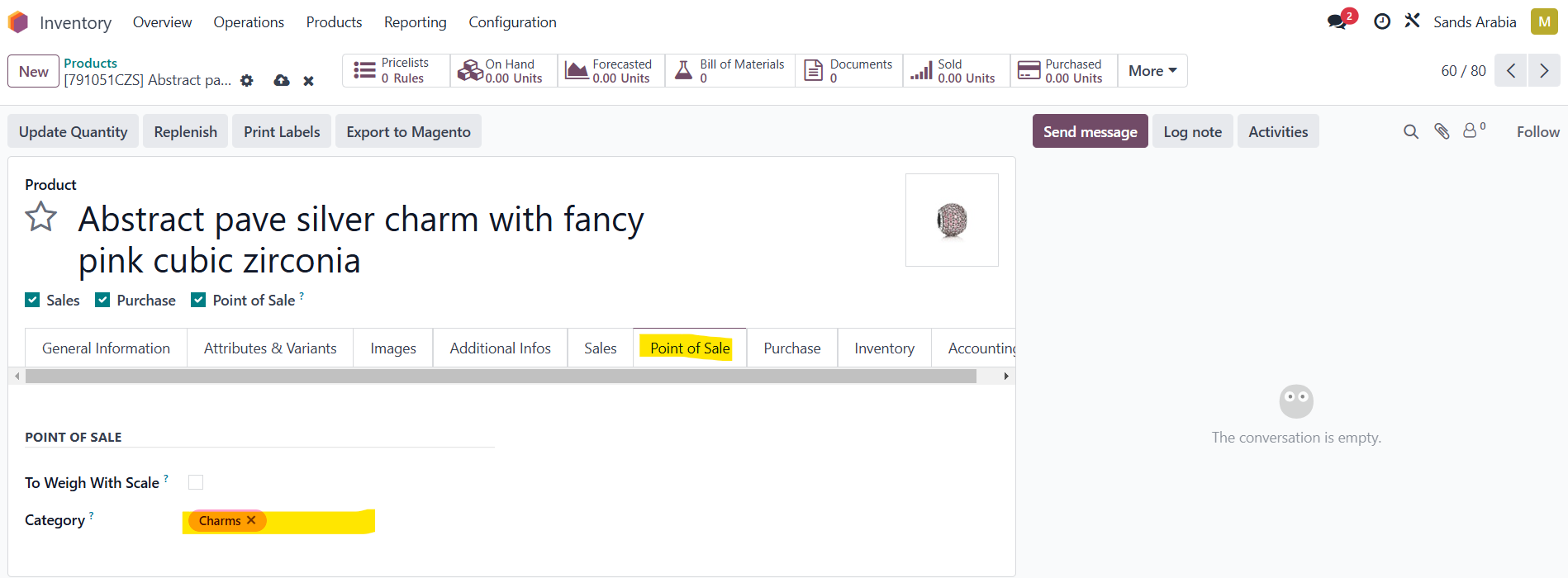
Enter any product and on tab Point of Sale, change the category by clicking on Category value and choosing from the dropdown list:
Through Excel:
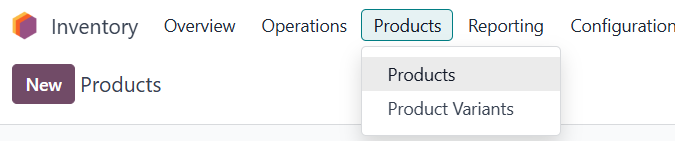
Go to Inventory module, Menu Products - Products
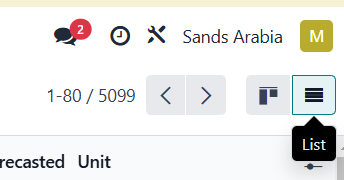
Go to List view
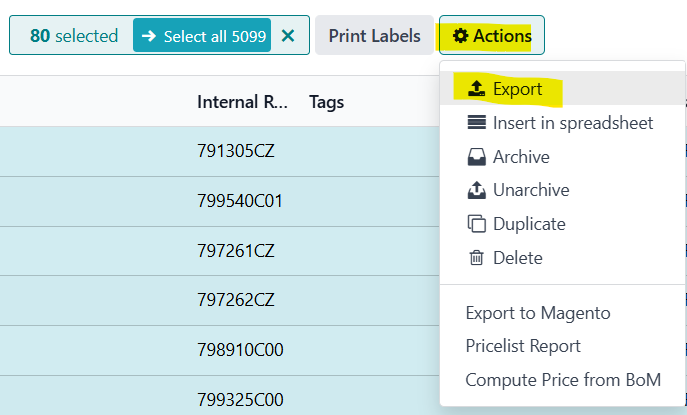
Select the products you wish to update by checking them (you can use the search bar to find the products you need to update, or you can use filters)
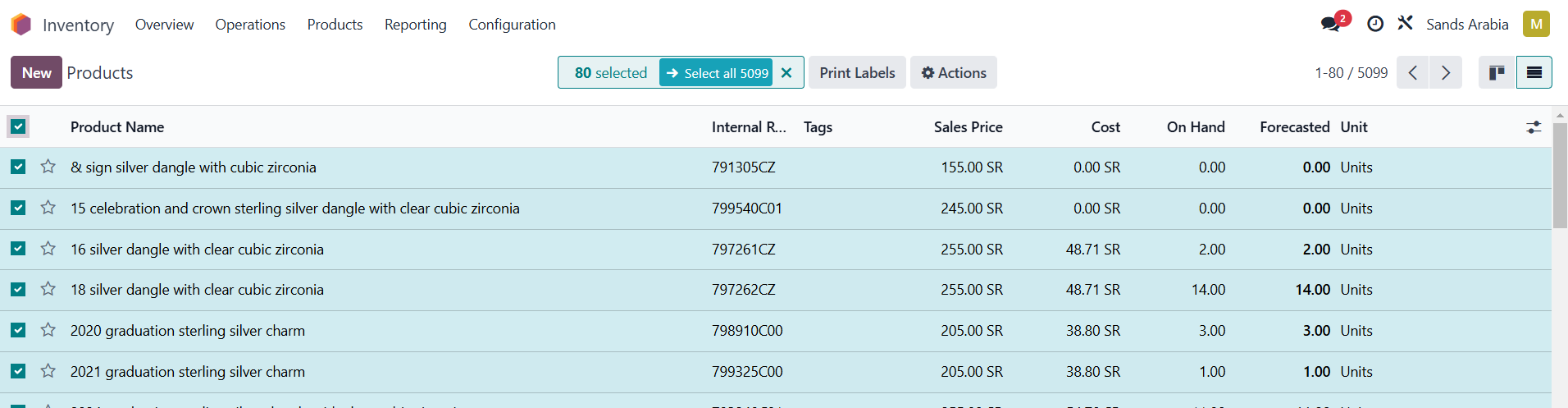
Click on Actions and Export
Check the checkbox "I want to update data" and pick template or create one with "Internal reference" and "Point of Sale Category/Category Name)" and go on EXPORT
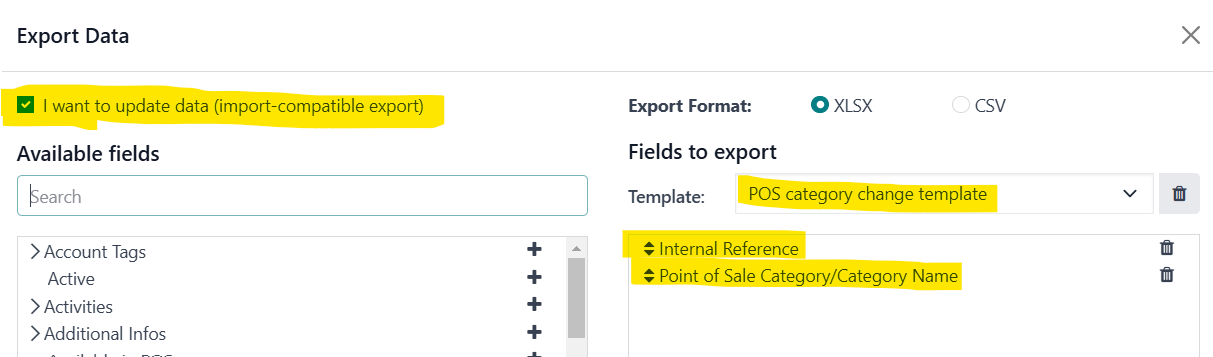
You will receive a template for changing the data.
A: Odoo ID - always leave it as it is, this is needed for the system to update existing products. If you dont have this column, you will create new products instead of updating the old ones.
B: Internal reference: Design variation in Master data (products without sizes). You can use it as a reference for VLOOKUP
C: Child Category name, e.g. Bracelet Bangle, Bracelet chain... - DNA Sub Category in Master data
Once you updated the Excel file as you wanted, you can import the file in Odoo.
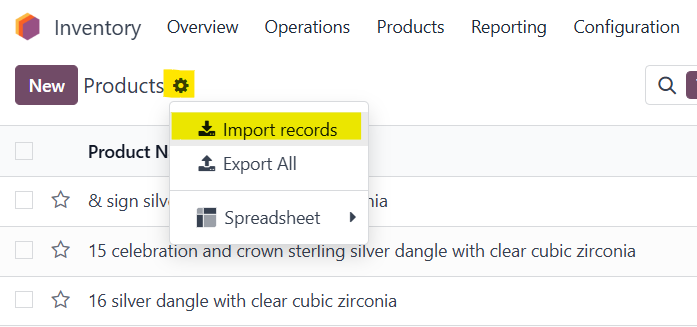
Again, go to Inventory module, Menu Products - Products
Click on Import records.
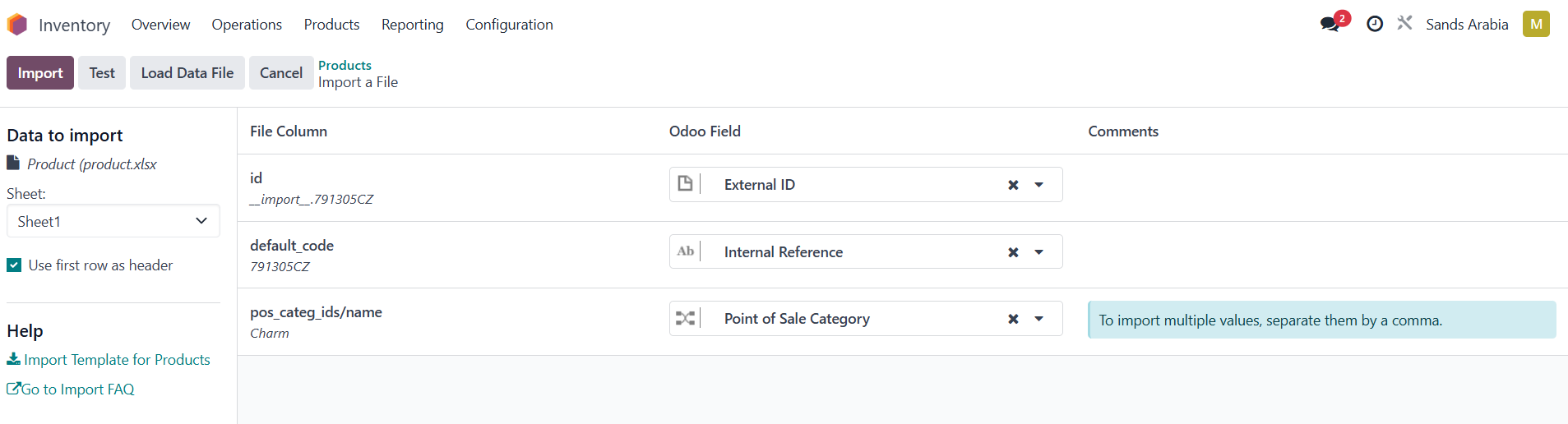
Go to Upload data file or drop the Excel document on the screen.
Check if all the fields are correctly adjusted and go on Test.
If everything seems valid, go to Import.
This will change all the POS product categories on the product level.
Was this article helpful?
That’s Great!
Thank you for your feedback
Sorry! We couldn't be helpful
Thank you for your feedback
Feedback sent
We appreciate your effort and will try to fix the article