1. Find Invoice for goods you want to put on stock. You should receive it from your vendor (Malta team or Analytics team).
2. Open the specific invoice you need in Excel.
3. Open Purchase Order Template File in Excel.
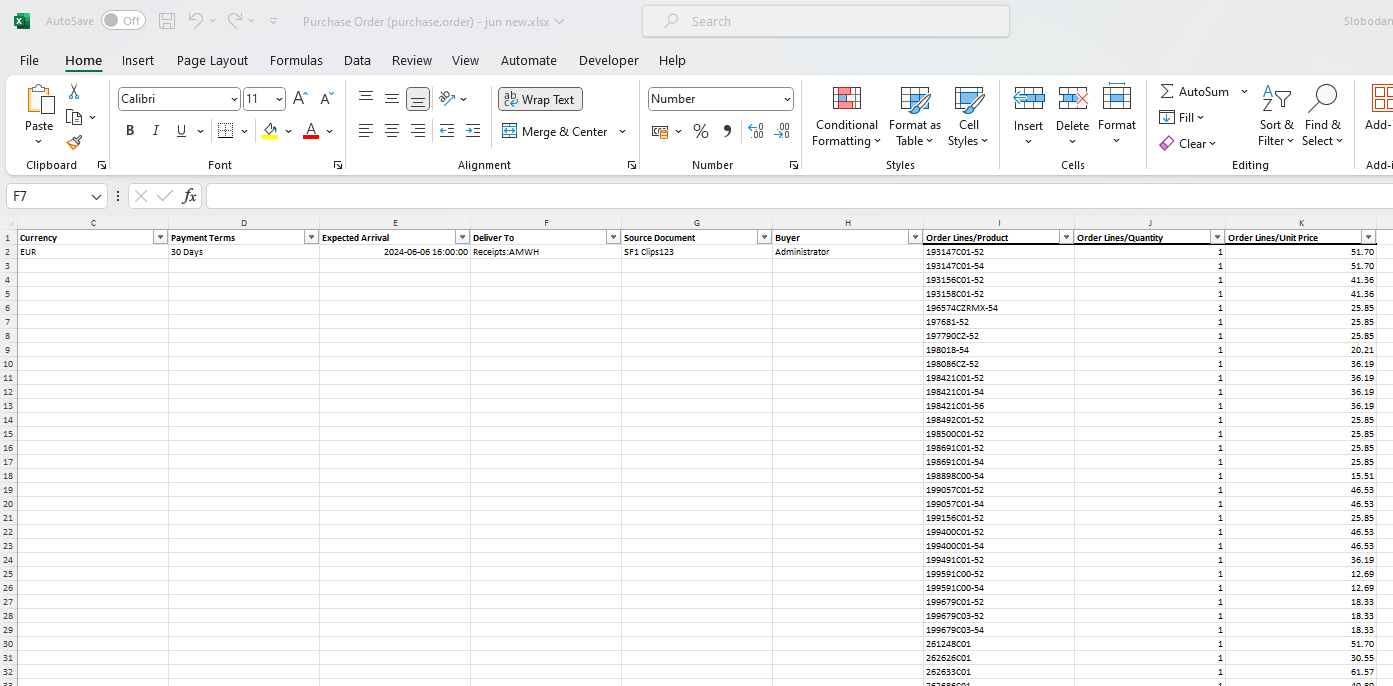
4. Ensure that the first row (header row) in the Purchase Order template remain unchanged.
5. You fill in the second row from columns A-H. Just the second row, other rows for columns A-H must remain empty.
A: Vendor: always SF1 Clips Ltd. (as written)
B: Vendor reference: invoice number
C: Currency: EUR
D: Payment terms: 30 Days
E: Expected arrival: Keep the same format, and enter a valid date for your invoice 24-06-06 16:00:00
F: Deliver To: you put in the name of the stock where you want to put your goods ex.:
- Receipts:AMWH, if the goods need to be received in the warehouse WH: Anfa place Mall
- Receipts:AEWH, if the goods need to be received in the warehouse WH: Aeria Mall
- Receipts:MSWH, if the goods need to be received in the warehouse Morocco Webshop
G: Source document: Invoice number
H: Buyer: Name of the admin user who puts goods on stock
5. Copy Columns from Invoice to New Purchase Order File
In the invoice, identify and select the following columns:
- Item Number (SKU, product code)
- Quantity
- Unit Price
Copy the values from these columns in the invoice.
Paste Values into Purchase Order File
Go to the Purchase Order template file.
Paste the copied values from the invoice into the respective columns:
Item Number values into Column I
Quantity values into Column J
Unit Price values into Column K
6. Save the document as .xlsx or .xls
You can import in the system with instructions HERE
You can see and download the PO template from this article.
Was this article helpful?
That’s Great!
Thank you for your feedback
Sorry! We couldn't be helpful
Thank you for your feedback
Feedback sent
We appreciate your effort and will try to fix the article